We’ve added an “inpainting feature” to copainter!
We’ve added an “inpainting feature” to copainter that allows you to naturally redraw specific parts of an image. Make revisions and fine-tuned adjustments for manga and animation production more smoothly than ever.
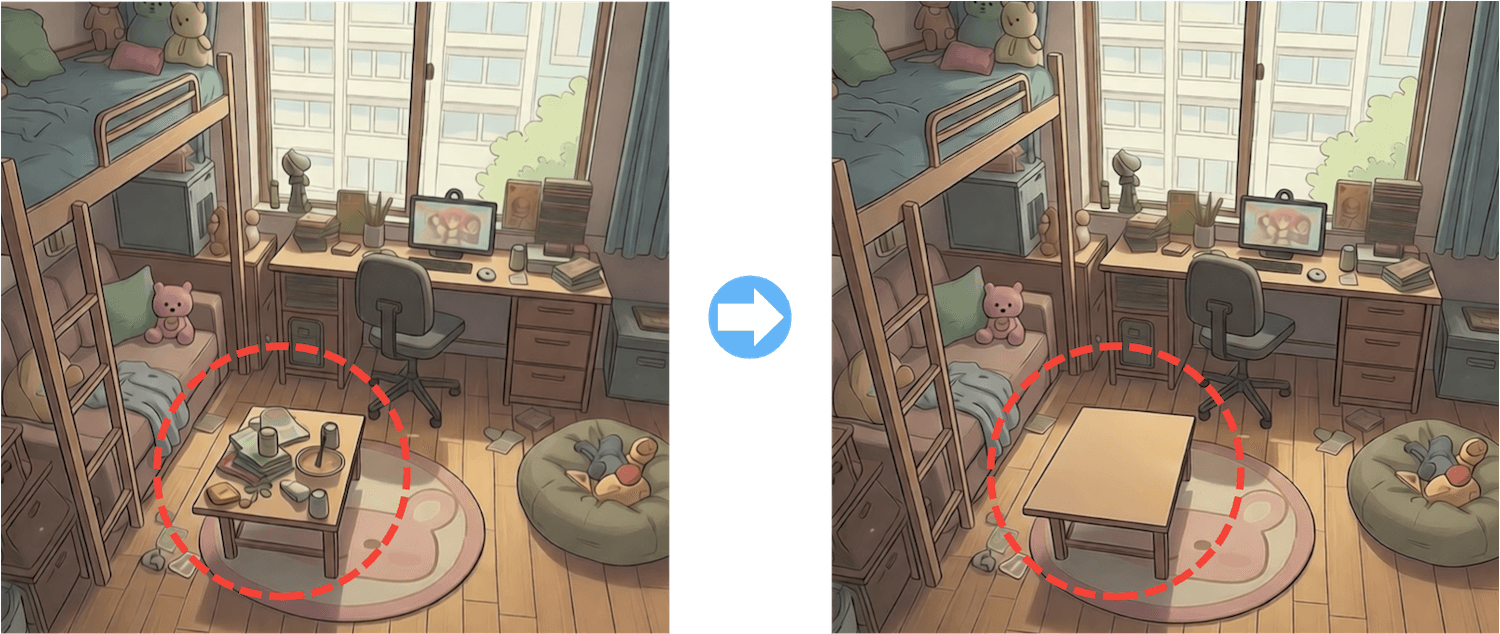
What Is the Inpainting Feature?
The inpainting feature allows you to redraw only specific parts of an image.
Simply select the area you want to modify and describe the changes you’d like to make. The AI will then regenerate that portion naturally, while preserving the original style and composition.
- Remove unwanted elements
- Fine-tune facial expressions or poses
- Replace backgrounds or small objects
- Make partial design changes
You can smartly edit only the “necessary parts” without having to recreate the entire image.
How to Use Inpainting
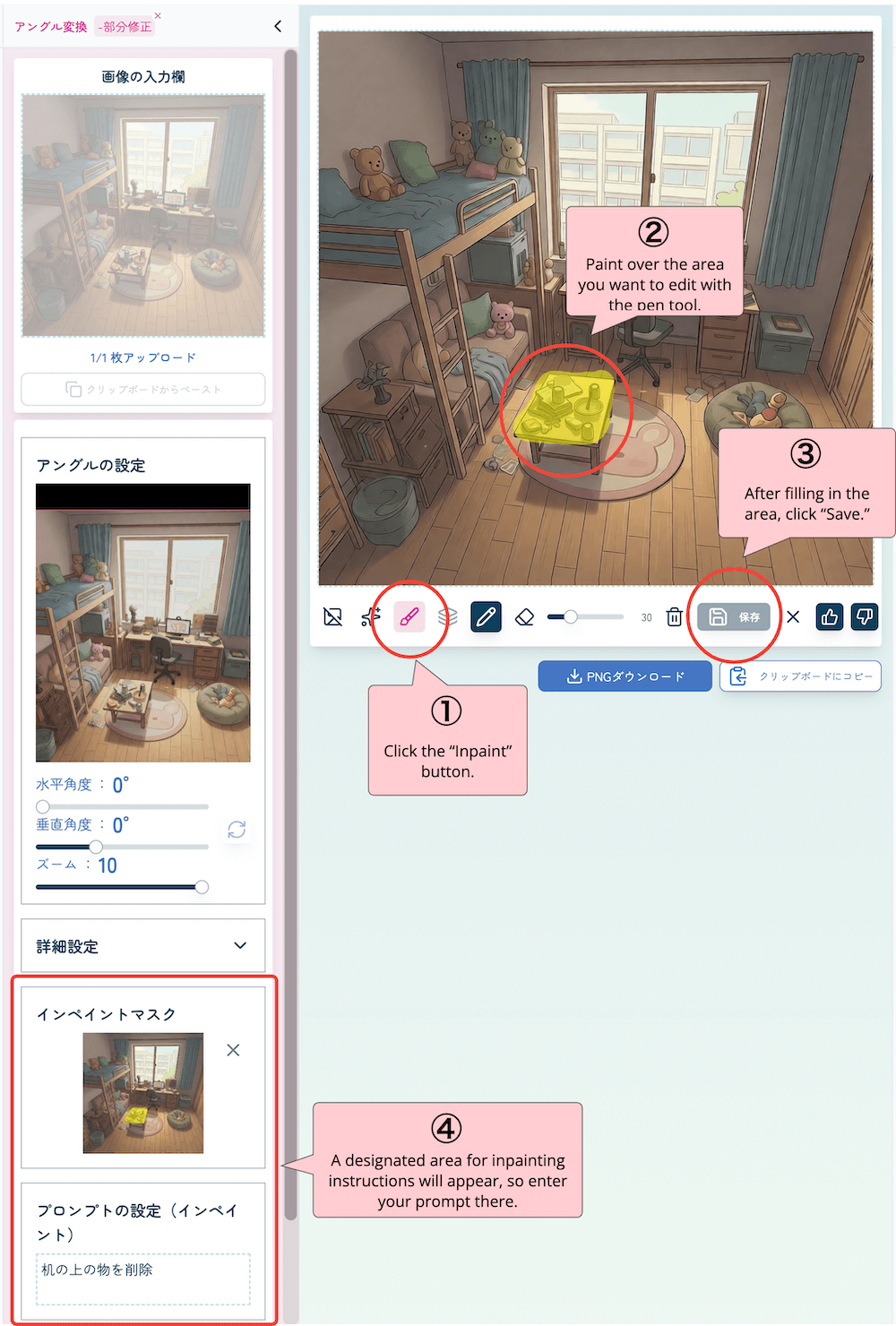
(1) Select the Inpainting Button
After using any tool, the inpainting button will appear. This AI tool becomes available after generating an image with any of the tools. Therefore, it cannot be used on its own.
If you would like to use only the inpainting feature, we recommend first processing the image through an AI tool such as the “2x” upscaling option, and then applying inpainting.
(2) Paint Over the Area
Once you select the inpainting button, you can paint over the image to specify the area you want to modify. You can adjust the brush size using the slider at the bottom of the screen. An eraser tool is also available, so if you accidentally paint over the wrong area, simply erase it.
Note that inpainting regenerates only the selected area. It will not extend beyond the specified region based on interpretation, so make sure to carefully cover the entire area you want to regenerate.
(3) Save
Click the save button to confirm the area you want to inpaint. Even after saving, you can still make adjustments.
(4) Enter a Prompt
Describe the desired changes in the “Prompt Settings” field. Providing detailed instructions will help you achieve more satisfactory results.
In some cases, the regenerated area may not perfectly match the original style. If this happens, adding a prompt such as “match the original art style” can help maintain consistency.
Extremely Useful for Manga Production
- Adjust only the mouth area when changing dialogue
- Fine-tune expressions (e.g., “make the character slightly angrier” or “add tears”)
- Replace background signs or small props
- Modify part of a costume design
Reduce the need to redraw or regenerate entire panels.
Extremely Useful for Animation Production
- Handle partial retakes in key animation or animation direction revisions
- Fix subtle issues in hands or fingertips
- Change only the time of day or weather while keeping the same layout
- Replace background elements or crowd characters
Instead of making full corrections, you can complete revisions with partial adjustments—significantly reducing production workload.
Reduce the need for redrawing,
and move toward a workflow that lets you focus on creativity.
Make the most of copainter’s inpainting feature.