
How can you create figure-style images with AI? A guide to using nano banana.
Figure-style AI images trending on social media can be created with Google’s nano banana. This article covers the basics, key tips, and introduces the safe tool copainter.

“Have you ever wondered how people make those ‘my pet looks like a figure’ images you see on social media?”
“I want to turn my own photo into a 3D figure-style image too!”
The “figure-style” images that have been trending on social media since around September 2025 are created using Google’s image-generation AI, nano banana. It excels at rendering texture, gloss, and realistic depth—transforming photos or illustrations into images that look like real collectible figures.
In this article, we’ll gently walk you through how to create figure-style images with nano banana, how to apply the technique to illustration workflows, and what precautions you should keep in mind. Finally, we’ll introduce a tool that helps you create with nano banana more safely and confidently.
Want to create figure-style images with AI?
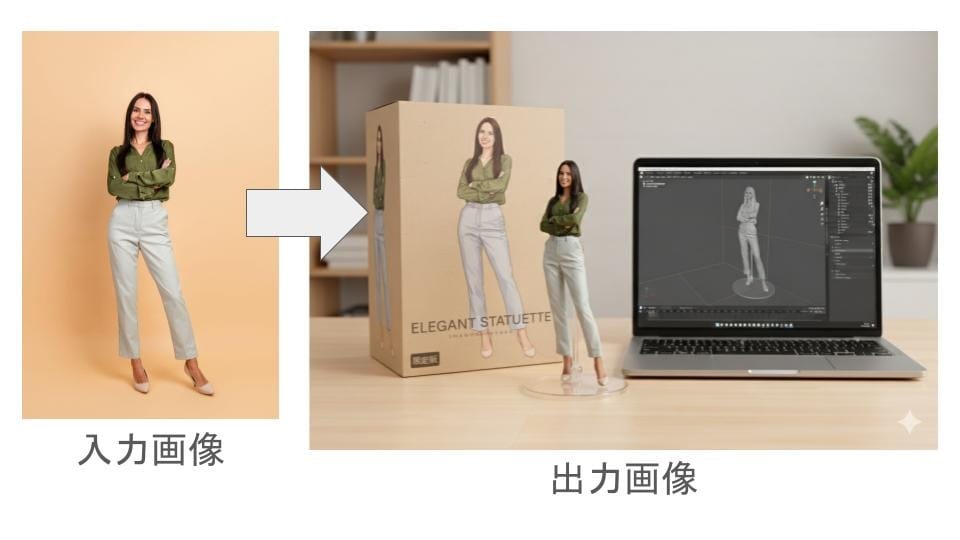
Wouldn’t it be fun to transform your illustrations or original characters into “figure-style” images that look like you could hold them in your hands?
Recently, this kind of highly detailed 3D-like AI rendering has become popular on social media. The results can even reproduce plastic textures, realistic shading, and packaging—so polished that they look like commercial product samples.
Here, we’ll introduce one of the most talked-about methods: using nano banana.
What is nano banana?
nano banana is the nickname for Google’s image-generation AI model, “Gemini 2.5 Flash Image.”
Unlike many traditional AI tools, nano banana can edit and transform images while preserving the original mood and character design, which makes advanced generation—like “figure-izing” an image—much more achievable.
It also tends to maintain character features well, so you’re less likely to run into the classic AI problem of “the character becomes a completely different person after a few generations.” Beyond figure-style output, it’s useful for multi-angle generation, creating variations, and other illustration tasks.
For a detailed overview of nano banana, check the following article:
What is nano banana? A complete guide to features, pricing, and precautions
How to create figure-style images with nano banana (PC)
With nano banana, you can transform an illustration into a figure-style image directly from your PC—no special software required. A browser is enough.
Below is a beginner-friendly method using Google AI Studio, so even people new to AI tools can try it easily.
1) Choose what you want to turn into a figure
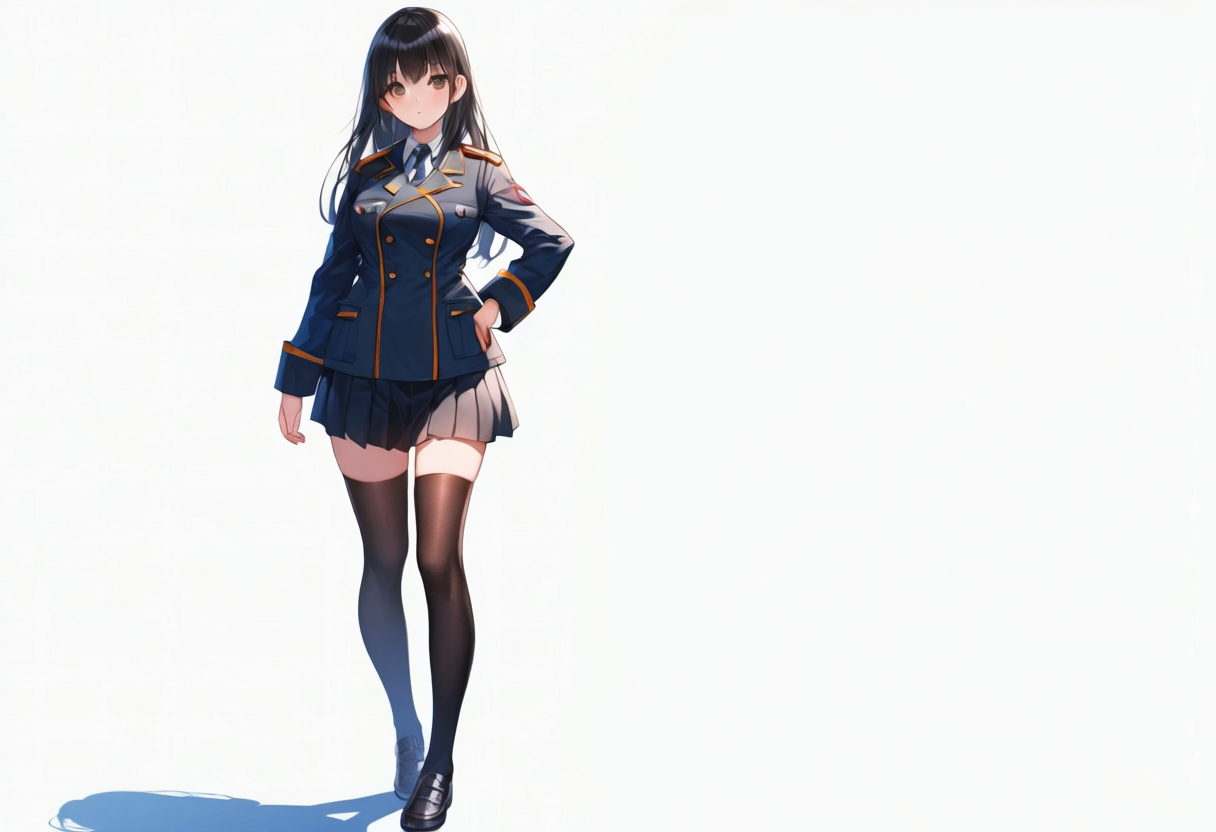
Prepare an illustration, image, or photo you want to “figure-ize.” This can be a person, a character, or even a pet.
Try to choose an image where the full body is clearly visible for best results.
2) Open Google AI Studio
Go to Google AI Studio. If you log in with your Google account, you can try nano banana even on the free plan. No additional apps or installations are needed.
After logging in, click “Try nano banana” to get started.
3) Enter the prompt
With nano banana selected, paste the following prompt into the chat box:
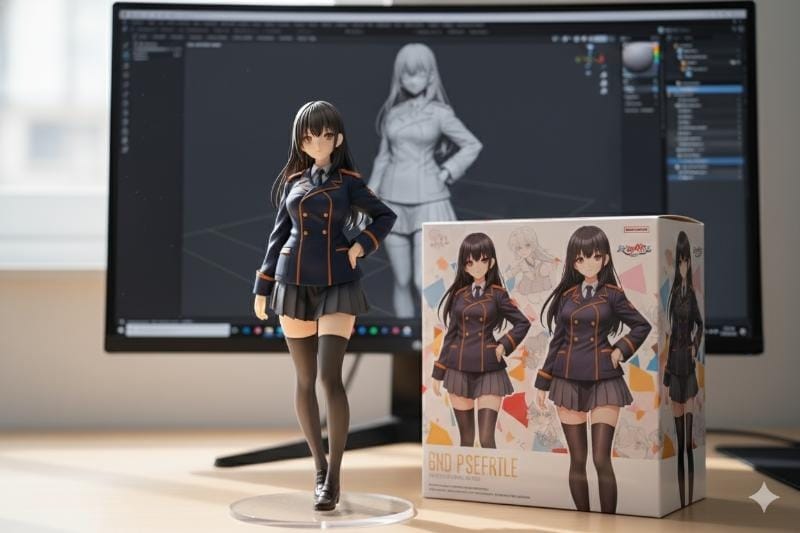
Create a hyper-realistic 1/7-scale commercial anime figurine of the character(s) in the reference image, displayed in a real environment.The figurine is placed on a modern computer desk, with soft daylight coming from a nearby window.The figure is fully painted, high-quality PVC/ABS, with detailed sculpting, gloss-coated eyes, realistic hair strands, and precise shading.It stands on a clean round transparent acrylic base with no logo or text.Next to the figure is a premium collectible toy box featuring flat 2D anime-style printed illustrations of the character, similar to official figure packaging.On the monitor behind the figure, show a 3D modeling software screen displaying the sculpting process of this figurine.Include depth of field, realistic plastic texture, subtle dust particles, accurate shadows, and soft reflections on the base.Studio-quality photography, 50mm lens style, shallow depth of field, natural bokeh.
That’s it—nano banana will generate a figure-style image based on your reference.
How to create figure-style images with nano banana (Smartphone)
If you don’t have a PC, you can still generate figure-style images from your smartphone—again, no app required.
1) Access Google AI Studio from your phone
Open your mobile browser (Safari/Chrome) and go to Google AI Studio. Log in with your Google account.
If you use the same account as your PC, settings and generation history can be shared.
2) Tap “Try nano banana”
Tap “Try nano banana” on the top page or image-generation screen. The mobile UI is designed to be easy to use.
Upload the image you want to convert into a figure-style look.
3) Enter the prompt
Use the same prompt as the PC method.
Note: downloading generated images on mobile may consume a lot of data depending on your plan, so be careful.
Important precautions when generating figure-style images
Figure-style generation is a fun and creative way to bring ideas to life, but there are a few important things to keep in mind—especially if you plan to post the results online or use them commercially.
AI may accidentally generate real company logos
Because of training data influence, AI can sometimes produce parts that resemble real logos or product designs—even if you didn’t request them.
Before publishing or using an image, check carefully for elements that could be mistaken for a brand logo to avoid unintended trademark issues.
Be careful about portrait rights and publicity rights
If the source image includes real people or famous characters, there may be legal risks involving portrait rights or publicity rights.
To stay safe:
- Use your own original illustrations for figure conversion
- Use materials you have permission to use
- Keep it to personal enjoyment if you’re unsure
Uploaded images may be used for training depending on the service/settings
With Google AI Studio or general AI services, uploaded images may be used for model training depending on settings and usage conditions.
If you’re working with unreleased character designs or commercial projects, check the privacy policy and settings carefully—or choose a service that does not use your data for training.
Results are not always perfect
nano banana is highly capable, but it won’t always generate exactly what you imagine. Complex poses and compositions can be difficult, and outputs may sometimes shift toward a “nano banana-like” style.
Enjoy it as a creative tool and expect some trial and refinement.
nano banana isn’t just for figure-style images
While figure-style conversion is what made nano banana famous, it can do much more:
- Generating alternative angles (different viewpoints)
- Combining multiple characters into one scene
- Replacing backgrounds
- Changing poses and outfits
Because it’s good at 3D understanding, it’s especially useful for pose edits and clothing variations. Even if figure-style generation is your entry point, you can expand into character visual production and faster illustration workflows—one reason nano banana is drawing so much attention.
Recommended tool for safer illustration creation: copainter
If you want to use nano banana seriously for illustration work, copainter is a great option. copainter’s AI Assistant feature includes nano banana and makes tasks like expression variations, three-view sheets, and pose changes easy—often with just one click.
Because the environment is optimized for illustration creation, it can feel simpler and smoother than using Google AI Studio directly.
For creators who think, “I want to use AI, but I’m worried about settings,” or “I want a safe place to handle my work,” it’s an ideal first step.
The AI Assistant feature is available even on copainter’s free plan:
Try copainter, an AI illustration creation support tool (copainter / コペインター)
Why copainter stands out
Your data is not used for AI training
copainter does not use uploaded images or generated data for AI training. This makes it safe for original characters and confidential materials.
Easily change aspect ratios
You can adjust aspect ratios for social posts, icons, posters, banners, and more—while preserving composition naturally, without degrading quality.
Packed with illustration-friendly tools
copainter includes a full set of features in one place, such as:
- Upscaling
- Style conversion
- Generating from rough sketches
- Color adjustments
- Background changes
Because everything is integrated, you can complete your workflow without jumping between multiple apps.
Level up your creative work with copainter
With nano banana, you can go beyond figure-style images and create expression variations, three-view sheets, and many other creative outputs—while keeping your character’s identity intact.
At the same time, there are important considerations around data usage and rights. If you want to use nano banana with confidence, copainter offers a safer environment—plus practical features like aspect ratio adjustments and upscaling that help you work faster and more comfortably.
Try copainter, an AI illustration creation support tool (copainter / コペインター)
![[Free Download] Chibi Character Battle Pose Collection — Free for Copainter Users, Including Commercial Use](/content/images/size/w720/2026/03/header_pose-collection_battle-of-deformation-character-1.png)
![[Free Download] Female Battle Pose Collection — Free for Copainter Users, Including Commercial Use](/content/images/size/w720/2026/03/header_pose-collection_battle-of-woman-1.png)
![[Free Download] Male Battle Pose Collection — Free for Copainter Users, Including Commercial Use](/content/images/size/w720/2026/03/header_pose-collection_battle-of-man-1.png)