A free pose-base pack of women using a laptop. Free to use with commercial rights, and tracing or edits are allowed.
With copainter’s AI Assistant, you can achieve “just a little more zoomed-out” images. This article introduces outpainting examples using copainter, a safely designed tool approved for commercial use.
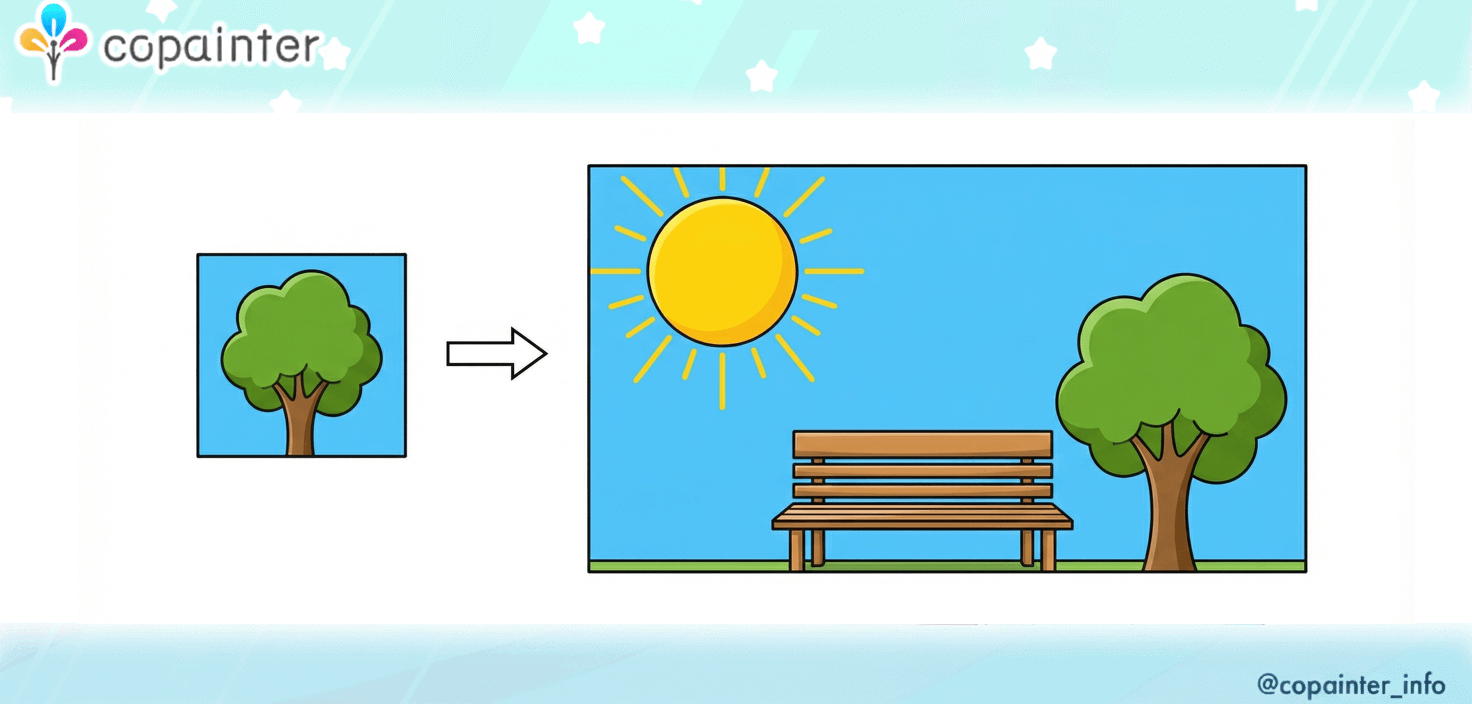
You know that moment when you think, “I wish I could use this image a little more zoomed out”?
That’s exactly when copainter’s AI Assistant comes in handy.
It naturally extends the background while preserving the original image, so you can easily achieve things like:
- Want a wide image for social media
- Need more space above/below for a thumbnail
- Don’t want to crop—want to expand the scene instead
How to use Outpainting (Background Expansion)
1) Upload the image you want to expand
First, upload your base image to copainter’s AI Assistant, such as:
- Character standing art
- Product photos
- Background illustrations
Then choose the aspect ratio that matches your desired output.
2) Enter a prompt
Type a prompt (text instructions) and send it.
Prompt examples:
- Expand this image outward to create a wide banner.
- Extend this image to fit 16:9.
3) Generate the result
The AI Assistant will generate an image with the missing areas naturally filled in.
Outpainting examples
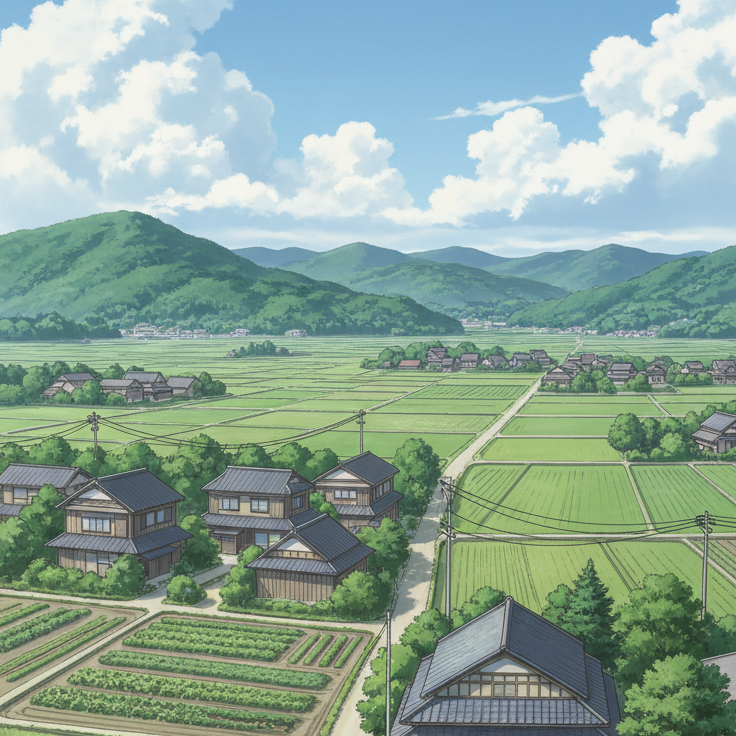
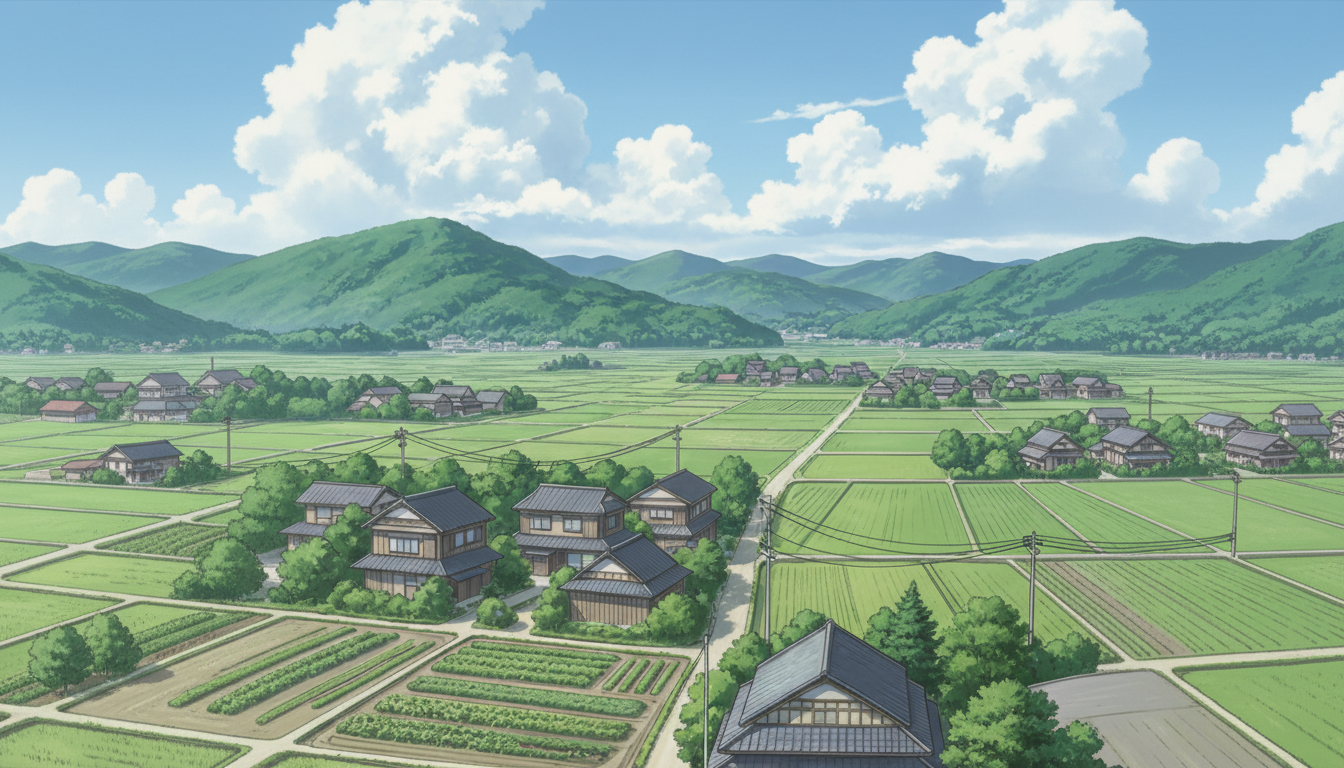
Expand a background | Make a background illustration more zoomed out
Prompt used: Expand this background illustration to fit 16:9. Fill the entire frame with the background. Match the style to the original.
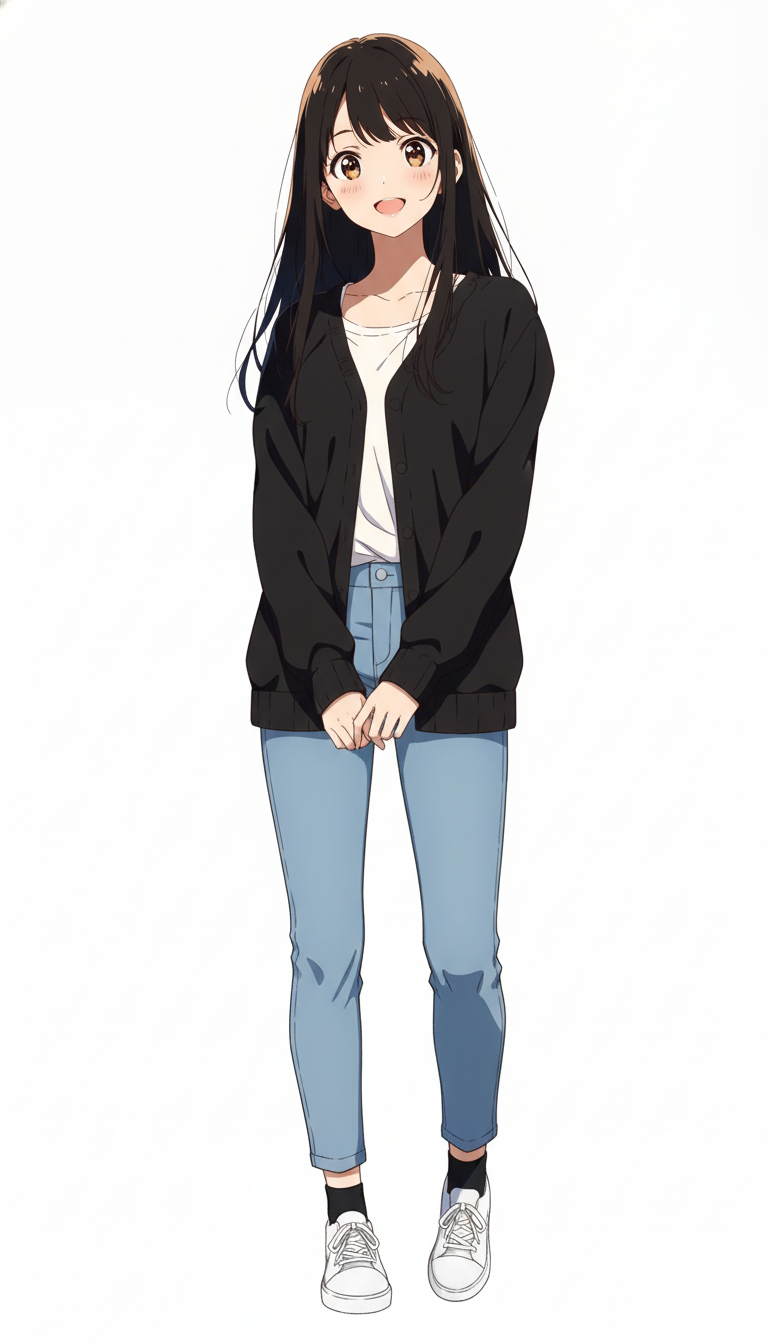
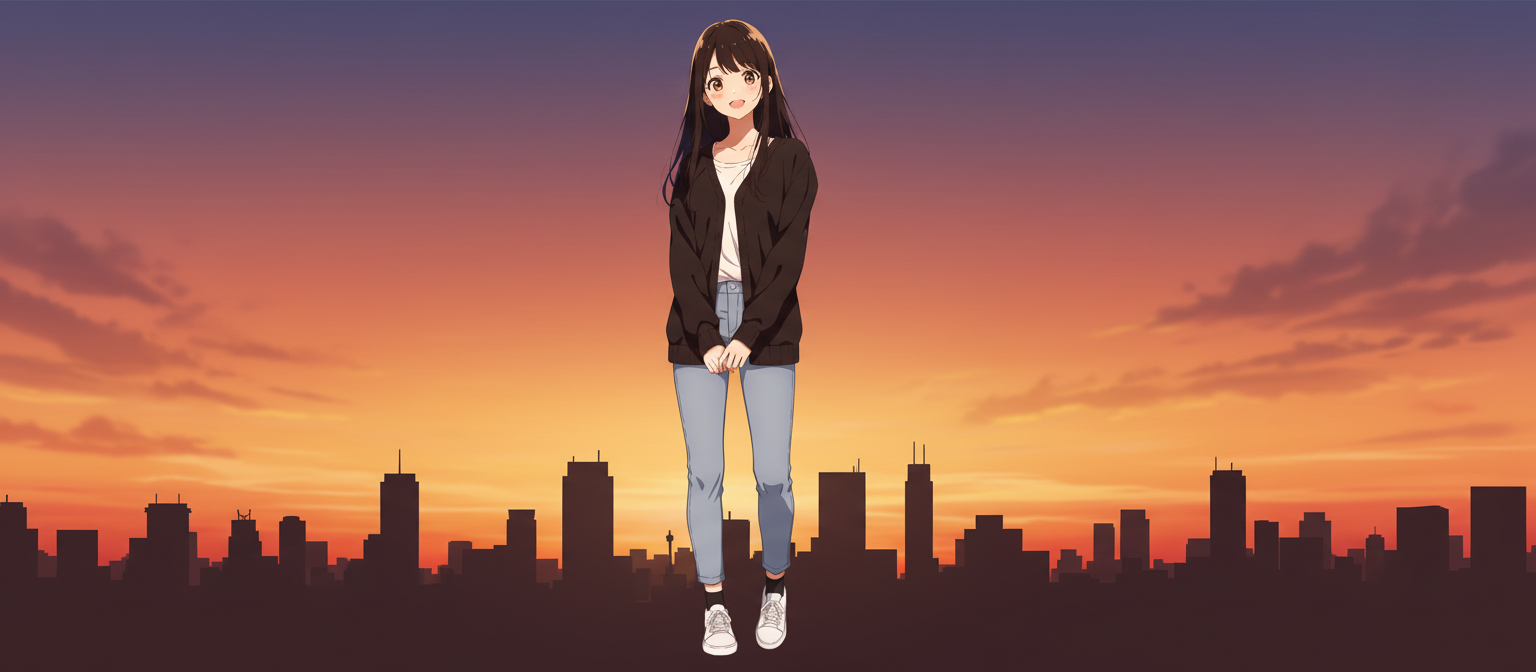
Add a background to character art | Turn a character into a wide SNS header
Prompt used: Create a wide header image centered on this character. The background should be a sunset sky and a city silhouette (no white areas). Keep the character’s pose and expression unchanged.
Recommended for:
1) Illustration / Manga creation
When you think:
- “I drew a close-up, but now I need a wider panel.”
- “I want to use this standing character art in a broader key visual.”
Outpainting lets you expand the composition smoothly.
2) Design / Banner creation
Perfect for formats like:
- Social media headers
- YouTube thumbnails
- Landing page hero images
where wide or unusual aspect ratios are needed—without damaging the original image.
3) Ads / Presentations
Useful when you want to:
- Create space around a product photo for text
- Use a key visual large on the first slide
- Adjust margins to fit an ad banner layout
Outpainting helps you quickly produce “just right” compositions.
4) Reuse and re-edit existing assets
Great for:
- Adapting older illustrations/photos to new design specs
- Changing only the aspect ratio for another platform
A simple way to upcycle your existing work.
Summary
Before, solving “I want this image a bit more zoomed out” meant extra work—painting extensions or reshooting.
With copainter’s AI Assistant, you can simply upload your image and get a naturally expanded version in seconds.
If you want to make better use of the images you already have, try Outpainting in the AI Assistant.
![[Free Download] Chibi Character Battle Pose Collection — Free for Copainter Users, Including Commercial Use](/content/images/size/w720/2026/03/header_pose-collection_battle-of-deformation-character-1.png)
![[Free Download] Female Battle Pose Collection — Free for Copainter Users, Including Commercial Use](/content/images/size/w720/2026/03/header_pose-collection_battle-of-woman-1.png)
![[Free Download] Male Battle Pose Collection — Free for Copainter Users, Including Commercial Use](/content/images/size/w720/2026/03/header_pose-collection_battle-of-man-1.png)