
Instant Outfit Changes with the AI Assistant! How to Change a Character’s Clothing in Seconds with copainter
Character costume changes enhance storytelling but are time-consuming to draw manually. copainter’s AI Assistant lets creators quickly change outfits while preserving character pose and background, reducing production time, cost, and revisions for manga, games, and animation.
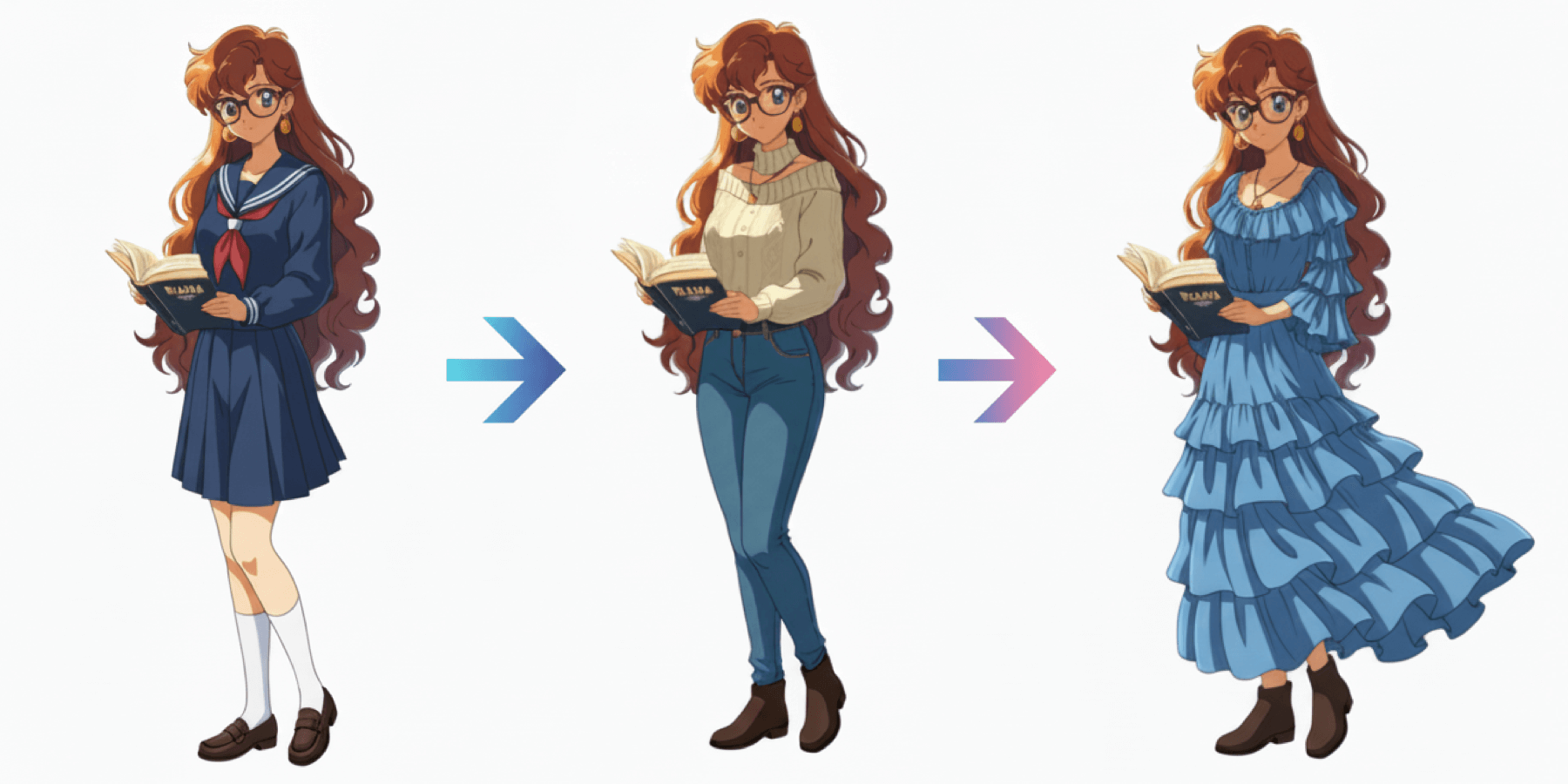
Costume Changes: A Powerful Tool for Storytelling and Mood Shifts
Changing a character’s costume is an extremely effective way to enhance storytelling and shift mood.
For example, transitions such as “school uniform → casual wear,” “summer outfit → winter outfit,” or “armor → casual gear” directly reflect character development and help heighten key events. However, drawing multiple costume variations by hand—or preparing layered dress-up illustrations—requires a huge amount of time and effort.
That’s where copainter’s AI Assistant comes in.
In this article, we introduce practical methods, benefits, step-by-step workflows, success tips, and real use cases for easily changing character outfits.
👉 Register for copainter now
What Is copainter’s AI Assistant?
copainter’s AI Assistant is a cutting-edge feature designed to support creators.
In addition to generating expression and pose variations, it can also be used for costume changes.
The AI modifies only the character’s clothing while maintaining body proportions, pose, and consistency with the background, all based on the original character illustration.
Costume Change Examples
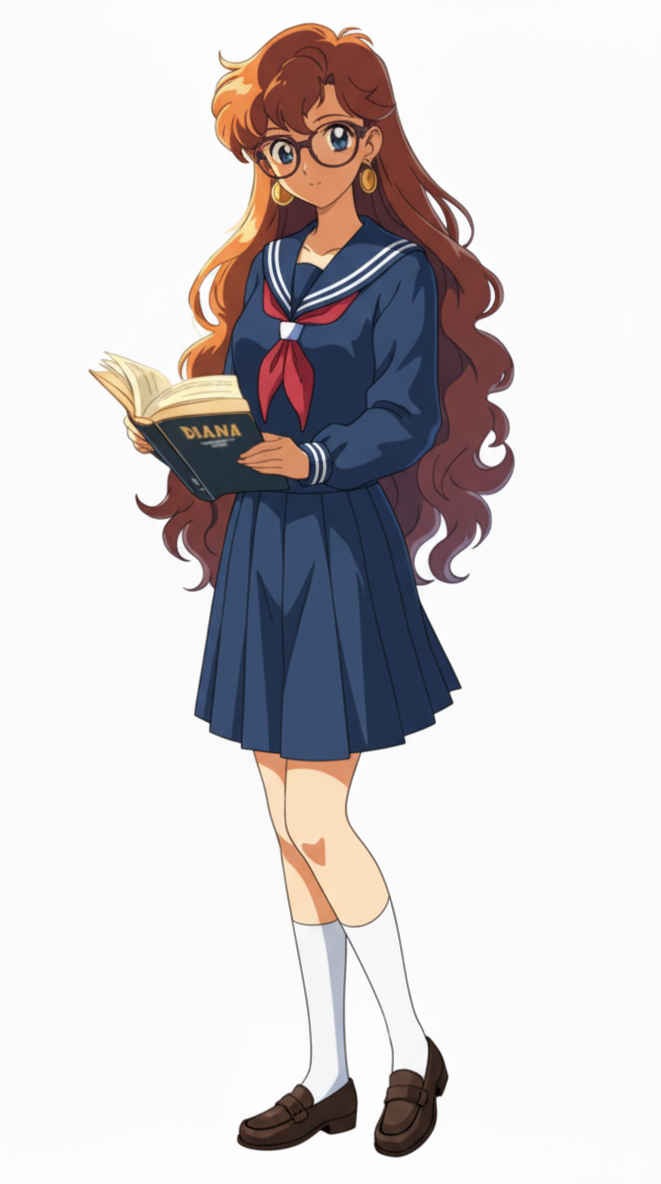
Base Image | Character in a Sailor Uniform
This image is used as the base for all following style transformations.
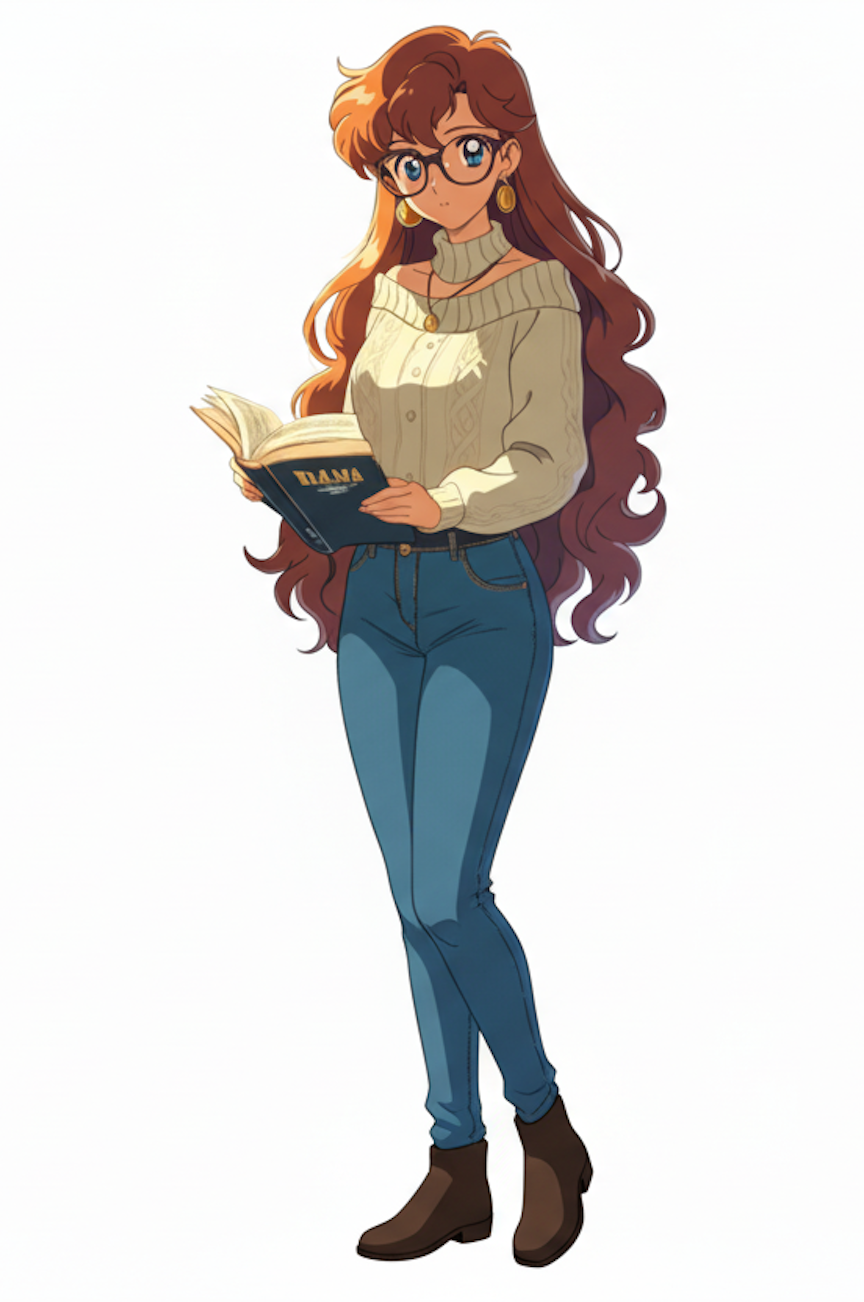
AI Outfit Change ① | Casual Style: Sweater × Denim
Transforms a student-style character into a natural casual outfit with a cable-knit sweater and denim.
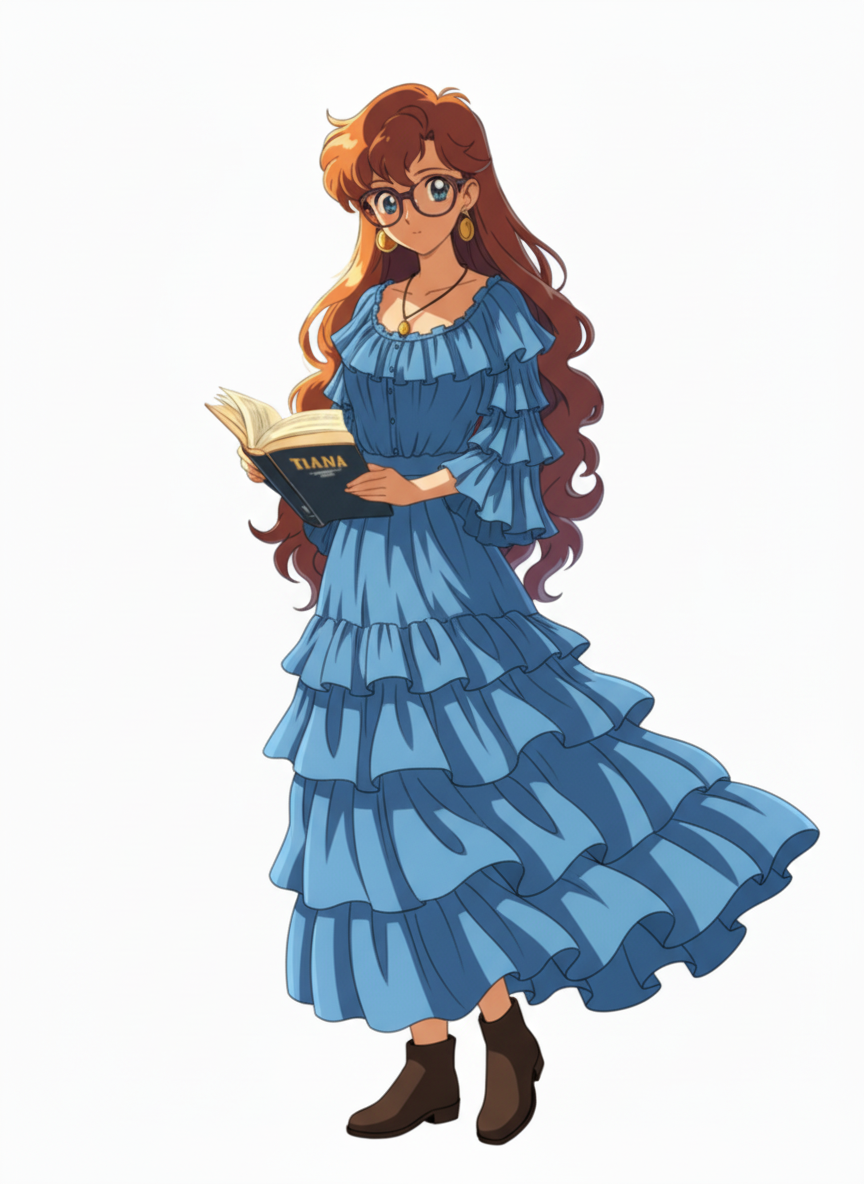
AI Outfit Change ② | Feminine Style: Frilled Long Dress
Converts the outfit into a light, layered frill dress for an elegant and glamorous look.
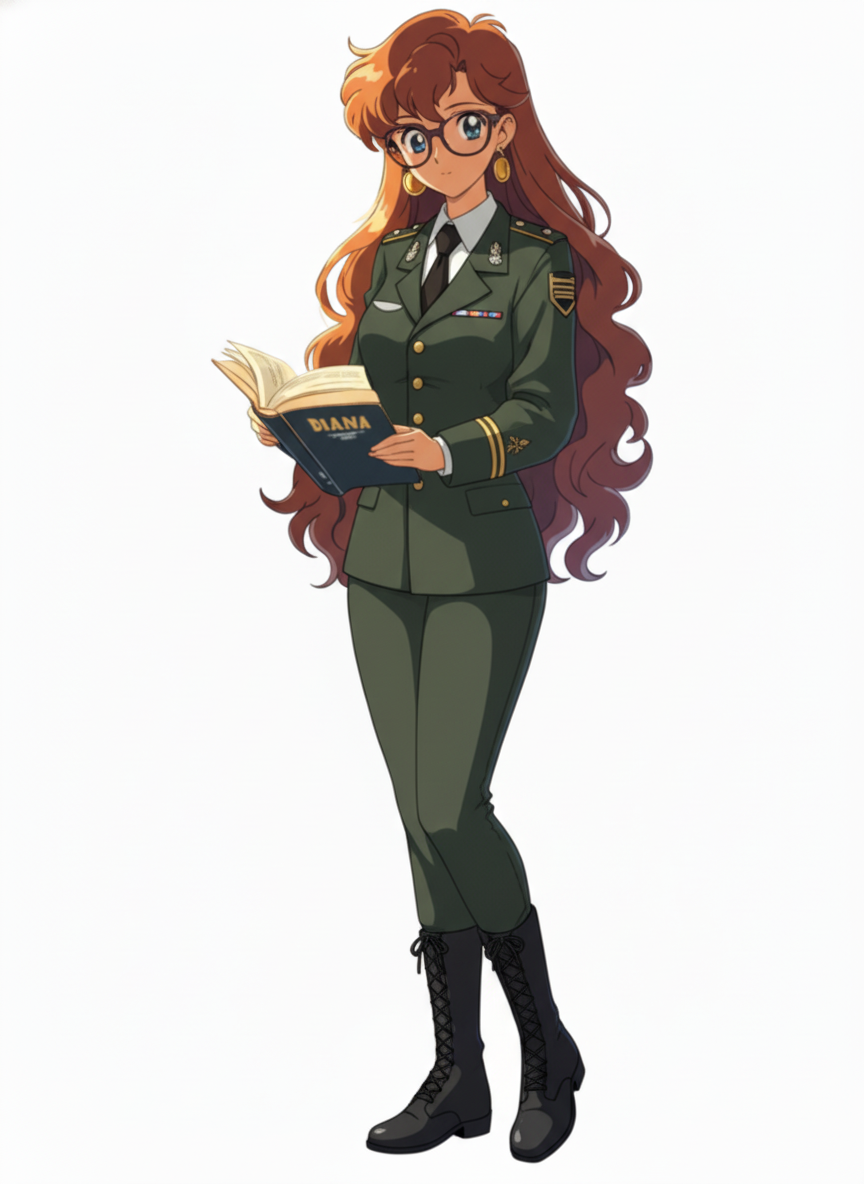
AI Outfit Change ③ | Military Uniform
Switches to a military uniform complete with rank insignia and boots, giving a sharp professional impression.
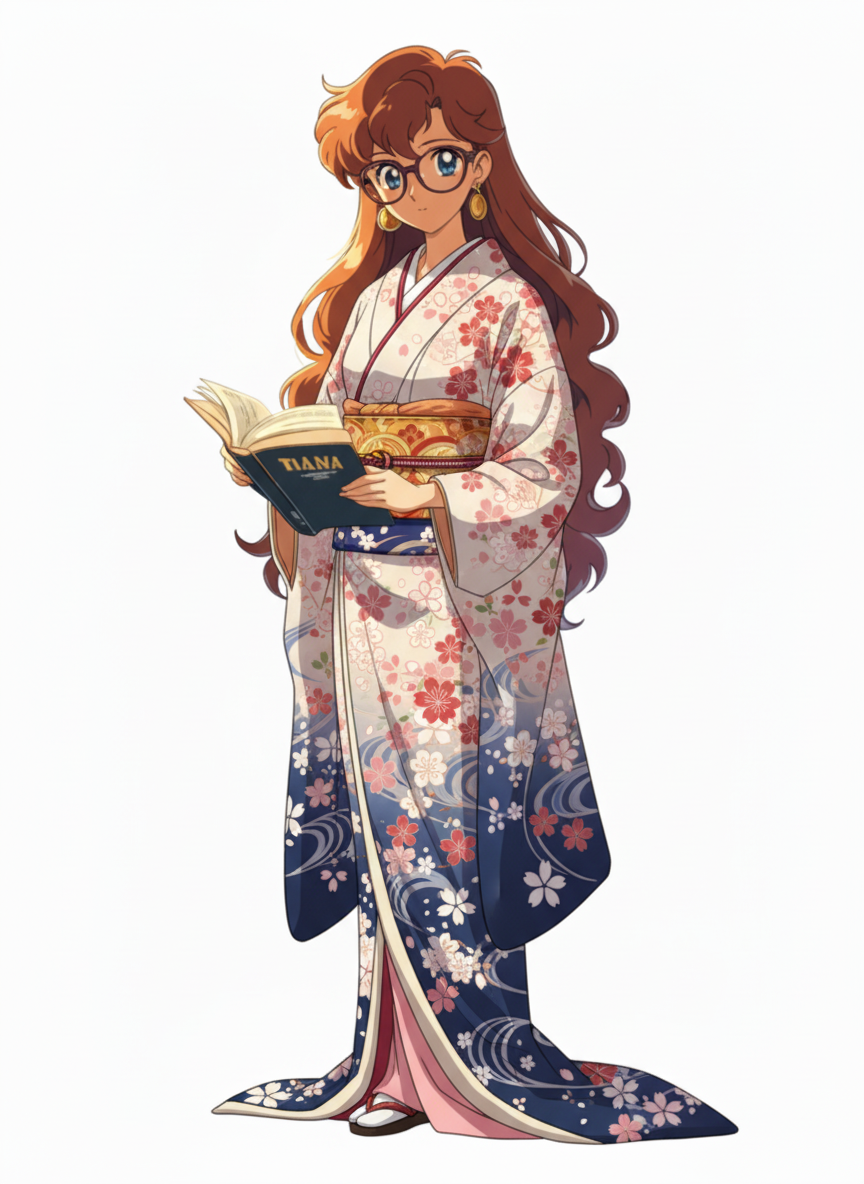
AI Outfit Change ④ | Traditional Kimono with Cherry Blossom Pattern
Generates a formal Japanese-style look with a cherry blossom furisode kimono and obi.
AI Outfit Change ⑤ | Swimsuit for a Beach Scene
Combines a swimsuit variation with a summer beach background for a refreshing seasonal scene.

Benefits of Using the AI Assistant for Costume Changes
Dramatically Reduced Production Time
Hand-drawn costume changes require multiple steps: design, sketching, line art, coloring, and adjustments.
With the AI Assistant, you can generate multiple variations in minutes by simply giving instructions like “change outfit” or “change color.”
Consistent Character Identity
You can change only the outfit while keeping the character’s body, pose, hairstyle, and background consistent—making it easy to maintain the sense of “the same character” across multiple scenes.
Lower Revision Costs
There’s no need to redraw clothing or rebuild layers, significantly reducing both workload and production costs.
Step-by-Step Guide: How to Change Outfits
1. Prepare the Original Character Illustration
Use an illustration with a clear pose, composition, and background.
Planning the intended outfit change in advance helps ensure better results.
2. Upload to copainter
Select the AI Assistant feature and upload your image.
Set the appropriate aspect ratio depending on your use case (e.g., manga panels or vertical Webtoon layouts).
3. Specify the Outfit Change via Prompt
Examples:
- “Change Character A into winter casual wear (beige jacket + denim). Keep the pose and background.”
- “Change from armor to casual clothing.”
- “Change to a summer T-shirt and shorts.”
The more specific you are about colors and items, the better the results.
4. Generate and Review
You may not get the ideal result on the first try, so generate multiple versions and select the most natural one.
5. Fine-Tune
If needed, adjust colors, lighting, shadows, or highlights to further polish the final image.
Tips and Best Practices
Be Specific with Instructions
Clearly describe clothing types, colors, accessories, hairstyles, and how they should match the background.
Providing reference images further improves accuracy.
Start with a High-Quality Base Image
Low resolution, unclear line art, or unstable compositions can cause visual inconsistencies during outfit changes.
Don’t Rely Solely on AI—Refine the Final Output
AI-generated images may have minor issues (unnatural fabric folds, missing or extra accessories).
Combining AI generation with manual adjustments greatly improves quality.
Use Cases
Manga & Webtoon Production
Prepare seasonal outfit variations (summer → autumn → winter) for main characters to support panel layouts and episode progression.
Game Development
Generate large numbers of equipment variations (normal → rare gear) for UI screens, titles, and shop illustrations.
Advertising & Promotional Materials
Have characters “change outfits” depending on campaigns or seasons—such as spring and summer promotion versions.
What Else Can the AI Assistant Do?
The AI Assistant can do far more than generate expression variations.
Check out these articles on copainter Learn for more ideas:
- Create Character Turnarounds with copainter’s AI Assistant
- Change Composition and Angles While Keeping Background Consistency
- Easily Generate Facial Expression Variations with AI
Summary
Costume changes are a powerful visual technique, but traditionally require significant time and effort.
By using copainter’s AI Assistant, you can change only the outfit while preserving character and background consistency, drastically reducing production time, cost, and revision workload.
Try it out with the free plan and see how it can enhance your creative workflow.
![[Free Download] Chibi Character Battle Pose Collection — Free for Copainter Users, Including Commercial Use](/content/images/size/w720/2026/03/header_pose-collection_battle-of-deformation-character-1.png)
![[Free Download] Female Battle Pose Collection — Free for Copainter Users, Including Commercial Use](/content/images/size/w720/2026/03/header_pose-collection_battle-of-woman-1.png)
![[Free Download] Male Battle Pose Collection — Free for Copainter Users, Including Commercial Use](/content/images/size/w720/2026/03/header_pose-collection_battle-of-man-1.png)