
A Complete Guide to copainter’s AI Assistant: Boost Your Workflow with Nano Banana Pro Built In
copainter’s AI Assistant, powered by nano banana and nano banana pro, streamlines illustration work with character edits, three-view sheets, expression variants, no training use, no watermarks, and commercial-ready output.
An AI Assistant feature has been newly added to copainter, the AI-powered tool that supports illustration creation. Powered by the trending “nano banana”, the AI Assistant can smoothly handle tasks such as character editing, generating three-view character sheets, and creating facial expression variations.
In this article, we’ll take a detailed look at what copainter’s AI Assistant can do, how to use it, and the unique benefits that make copainter stand out.
Try copainter, the AI illustration creation assistant (Copainter)
The “AI Assistant” Feature Has Arrived in copainter!
Shorter production time, more fun creation—that’s the idea behind copainter’s AI Assistant.
It strongly supports time-consuming tasks essential for game and anime production, such as expression variations and three-view character sheets. Because it uses the nano banana model, it’s also great at edits like changing a pose based on a rough sketch.
It runs easily in your browser, so there’s no need to install special software. Whether you draw as a hobby or for work, it’s a powerful assistant you can rely on.
Powered by the Popular “nano banana pro”
copainter’s AI Assistant uses Google’s latest image AI models:
- Gemini 2.5 Flash Image (a.k.a. nano banana)
- Gemini 3 Pro Image (a.k.a. nano banana pro)
Nano banana is a high-performance model that understands an image and edits or rearranges it based on your instructions. For example, you can keep the character the same while changing only the background, adjust the character’s pose, or tweak color tone—all with natural, simple prompts.
It also excels at keeping the same character design consistent across multiple scenes. This dramatically speeds up turning ideas into visuals and expands creative freedom.
What You Can Do with copainter’s AI Assistant
copainter’s AI Assistant makes illustration work easier and more enjoyable. Here are three especially useful examples:
- Edit a character into a specific situation
- Create a three-view sheet from a single illustration
- Generate facial expression variations
Edit a character into a specific situation
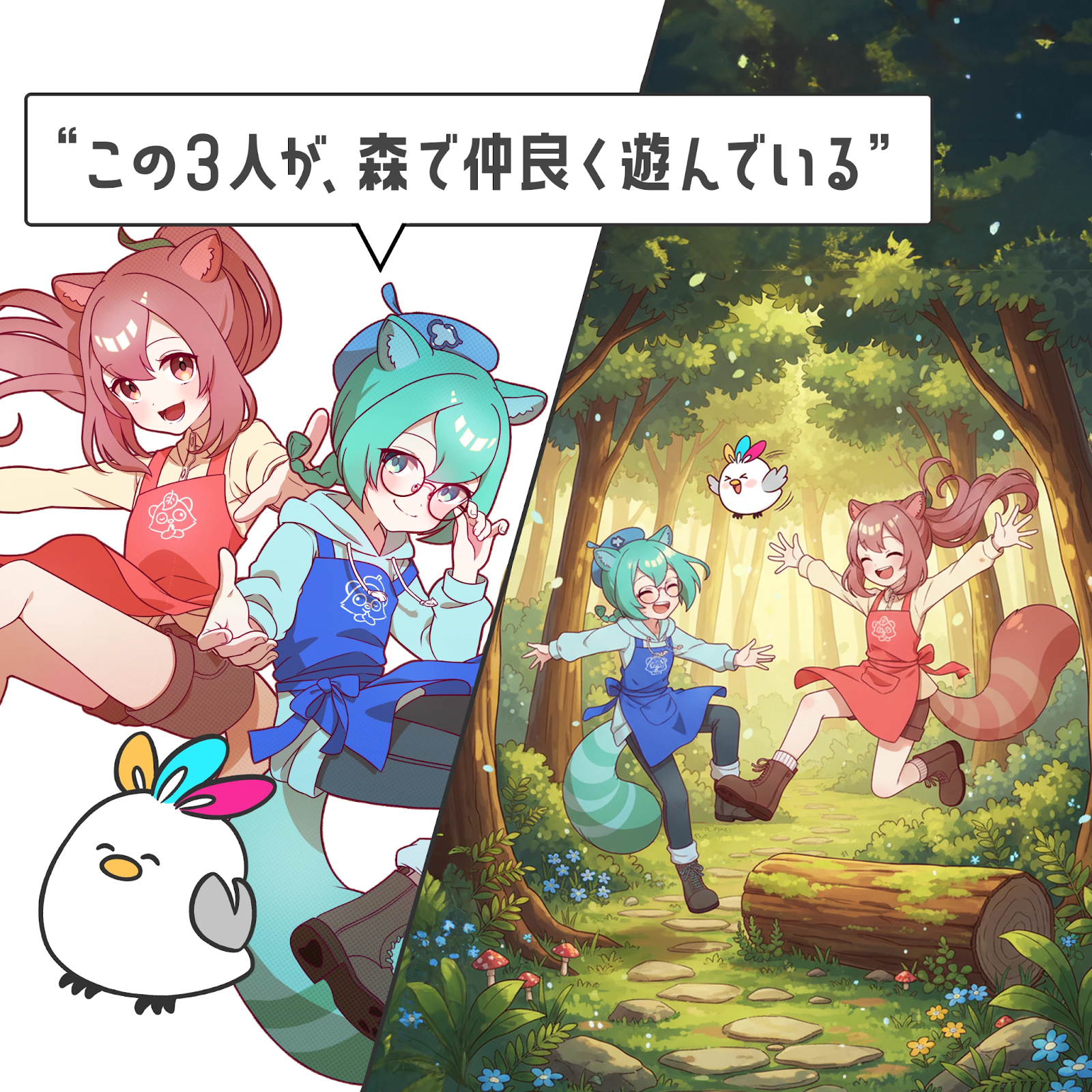
Requests like “Put the character sitting in a café” or “Make it look like they’re walking through the city at night” can be recreated instantly.
Because it automatically adjusts the background and composition, you can place the same character into many different scenes. You can also upload two different character images and input a prompt like “These two are walking while holding hands,” and the AI will generate a single natural-looking illustration.
This is perfect when you want to expand a world setting—such as for image boards or novel illustrations.
Create a three-view character sheet from a single illustration
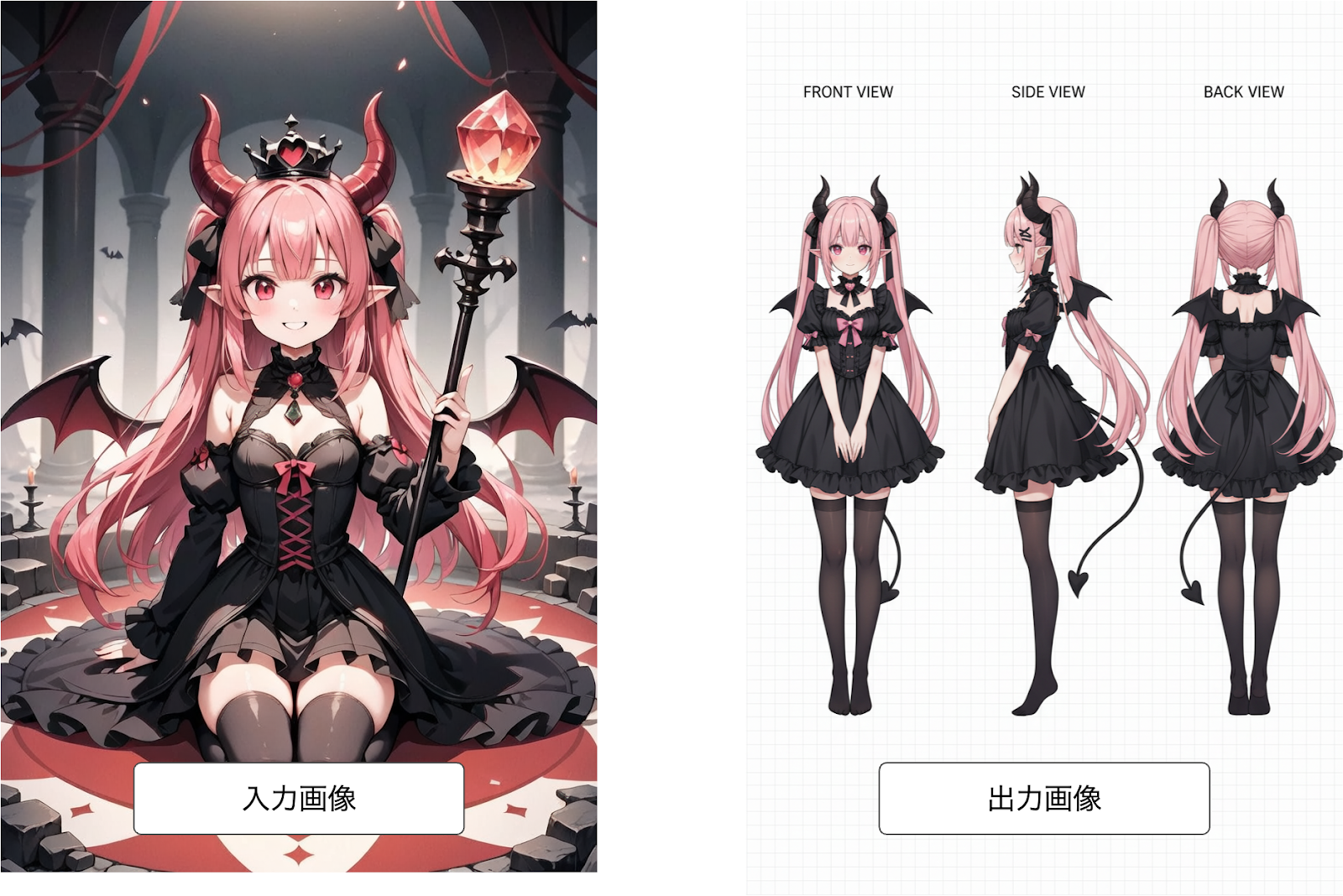
Three-view sheets (front/side/back) are essential for character design, and the AI can generate them automatically from just one illustration. Work that used to take hours by hand can be completed in only a few minutes with copainter’s AI Assistant.
It’s also extremely useful for creating reference materials for animation and 3D modeling.
(For detailed steps, see the related article: “Create a Three-View Sheet with copainter’s AI Assistant | How to Streamline Character Design”)
Generate facial expression variations
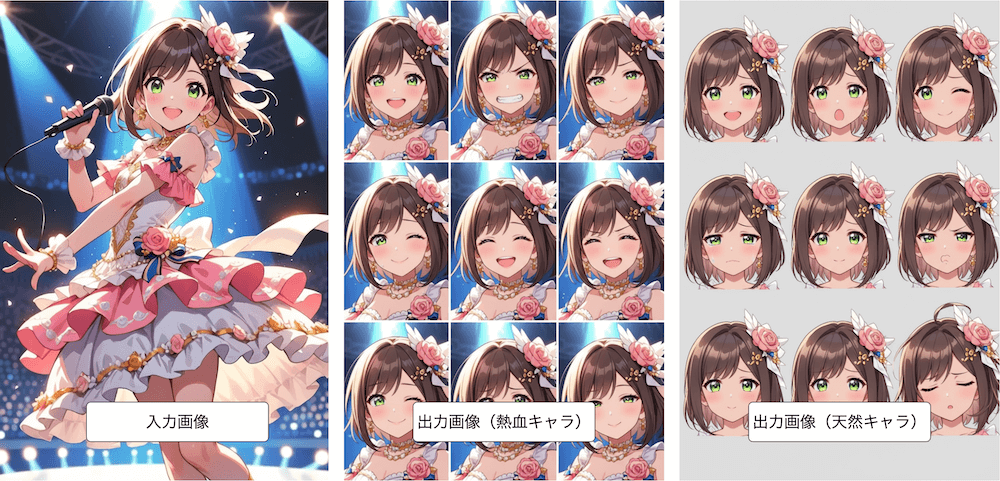
Another major strength is how easily it can create multiple expressions for a single character—such as joy, anger, sadness, and surprise.
It keeps the character’s core features and facial structure intact while naturally changing only parts like the eyes and mouth, bringing out more character appeal. This is useful not only for games and anime, but also for adding expressions to characters used in videos and other content.
(For detailed steps, see the related article: “Generate Expression Variations Easily with AI! Streamline Character Design with copainter’s AI Assistant”)
Unique Benefits of copainter’s AI Assistant
If you want to use nano banana for illustration work or professional creative projects, copainter’s AI Assistant is a great option. But you may wonder: “How is this different from using nano banana directly?”
Here are six major advantages that are unique to copainter:
- Uploaded and generated images are not used for AI model training
- No watermark is added
- Combine with other copainter tools to get closer to your ideal result
- Easily adjust aspect ratios
- Commercial use is allowed, making it safe for business use
- Upscaling AI can compensate for insufficient resolution
- With nano banana pro, you can output 2K images
The AI Assistant is available even on copainter’s free plan—try it here:
Try copainter, the AI illustration creation assistant (Copainter)
Uploaded/generated images are not used for AI training
When using nano banana directly via Gemini, uploaded images and generated outputs may be used for Google’s AI training depending on your settings.
With copainter, images you upload or generate are never used for AI training. That means your work won’t become training data, so you can create with confidence. This privacy-first design is one reason many game and anime studios have adopted copainter.
No watermark
Unless you use nano banana through an API, generated images typically include a watermark. Even if commercial use is allowed, a watermark can make it difficult to deliver images as-is.
With copainter’s AI Assistant, generated images do not include watermarks, making workflow smoother than using nano banana directly.
Combine features to create closer-to-ideal illustrations
copainter lets you combine the AI Assistant with other tools to get results closer to your vision—for example:
- Edit composition and pose with the AI Assistant, then refine with Upscaling
- Change the overall style using Image Conversion or Image Generation
Because you can mix and match features freely, you can improve quality while working efficiently.
Adjust aspect ratios easily
You can easily change an image’s aspect ratio to match your intended use. Supported aspect ratios include:
- Square (1:1)
- Portrait (3:4, 9:16)
- Landscape (4:3, 16:9)
- Ultra-wide (21:9)
- Ultra-tall (9:21)
This makes it easy to create images for social media posts, print, and more without extra effort. As of October 2025, nano banana itself does not support aspect-ratio changes, so this is a key copainter-only advantage.
Commercial use is allowed—safe for business
copainter officially allows commercial use of generated images. You can safely use them for advertising visuals, social media posts, merchandise design, and more. Selling illustrations created with the AI Assistant or using them as promotional materials is also fine—making copainter a highly reliable tool for professional creators as well as hobbyists.
 copainter team
Upscaling AI helps compensate for low resolution
A limitation of nano banana is that it often generates images around ~1000 px, which may be too small for manga, anime, or game production.
copainter includes an Upscaling feature that can raise resolution of AI Assistant outputs up to around 4000 px, which is extremely helpful for commercial illustration workflows.
nano banana pro can output 2K images
Free nano banana pro often has strict usage limits and outputs around 1K resolution. With copainter, you can output at 2K, which helps preserve fine details and maintain higher quality for creative work.
How to Use copainter’s AI Assistant
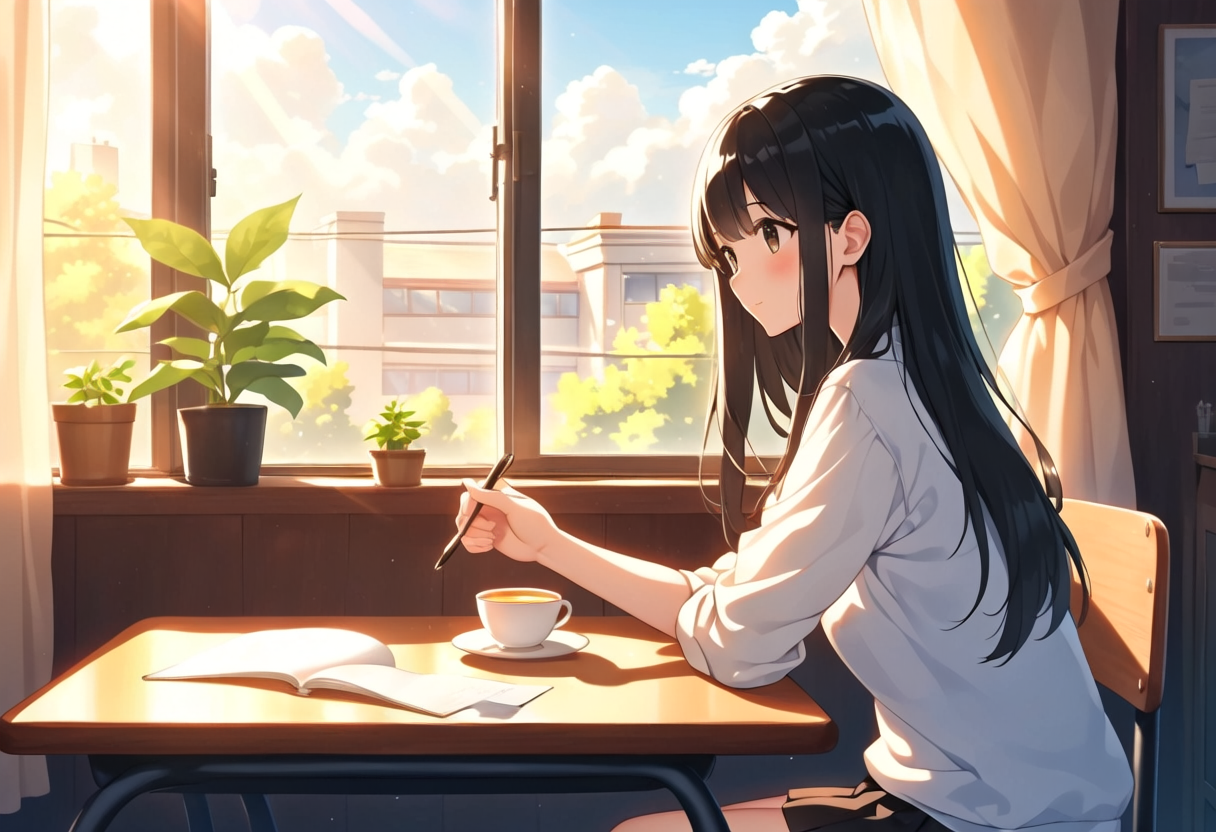
copainter’s AI Assistant is designed to be easy for anyone to use—no complex settings or specialized knowledge required. Just upload an illustration and enter instructions, and the AI will handle the rest.
Here’s the basic workflow (example: changing a background from daytime to night):
1) Prepare and upload your image
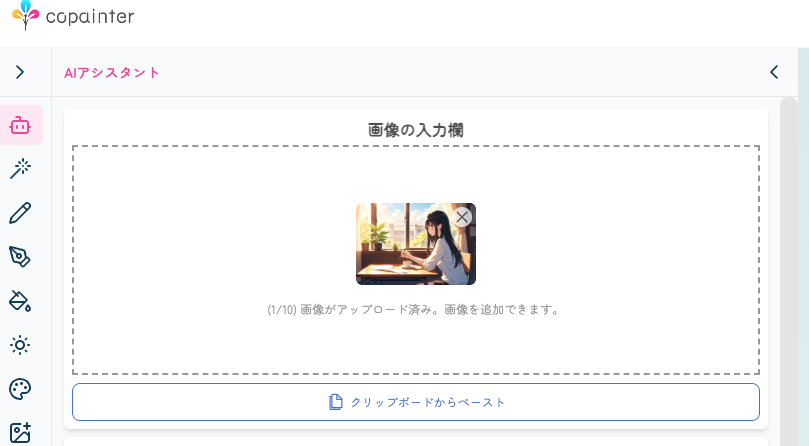
Prepare the illustration or character image you want to edit—rough sketches and finished art are both fine. Upload by drag-and-drop, and you’re ready to go. No file conversion required, and everything works smoothly in the browser.
2) Enter your prompt
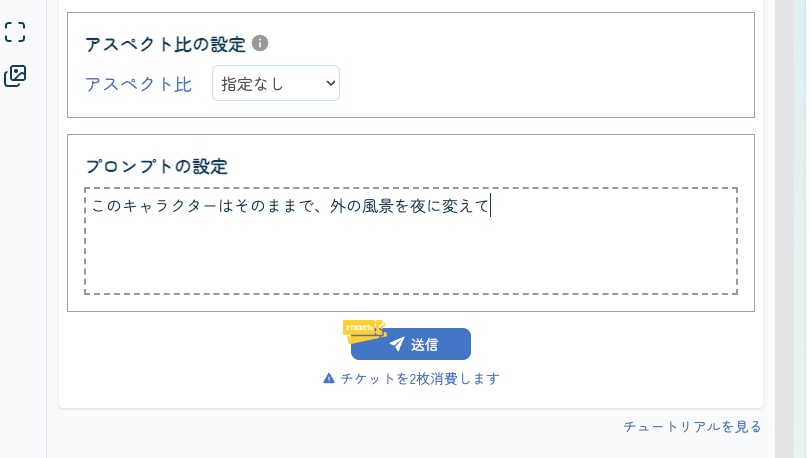
After uploading, tell the AI what you want—natural Japanese is fine, such as:
- “Make the character smile”
- “Change the background to a sunset”
No need to memorize English commands or technical terms. Just describe what you envision, and the AI will understand and move the result closer to your ideal.
3) Generate and fine-tune
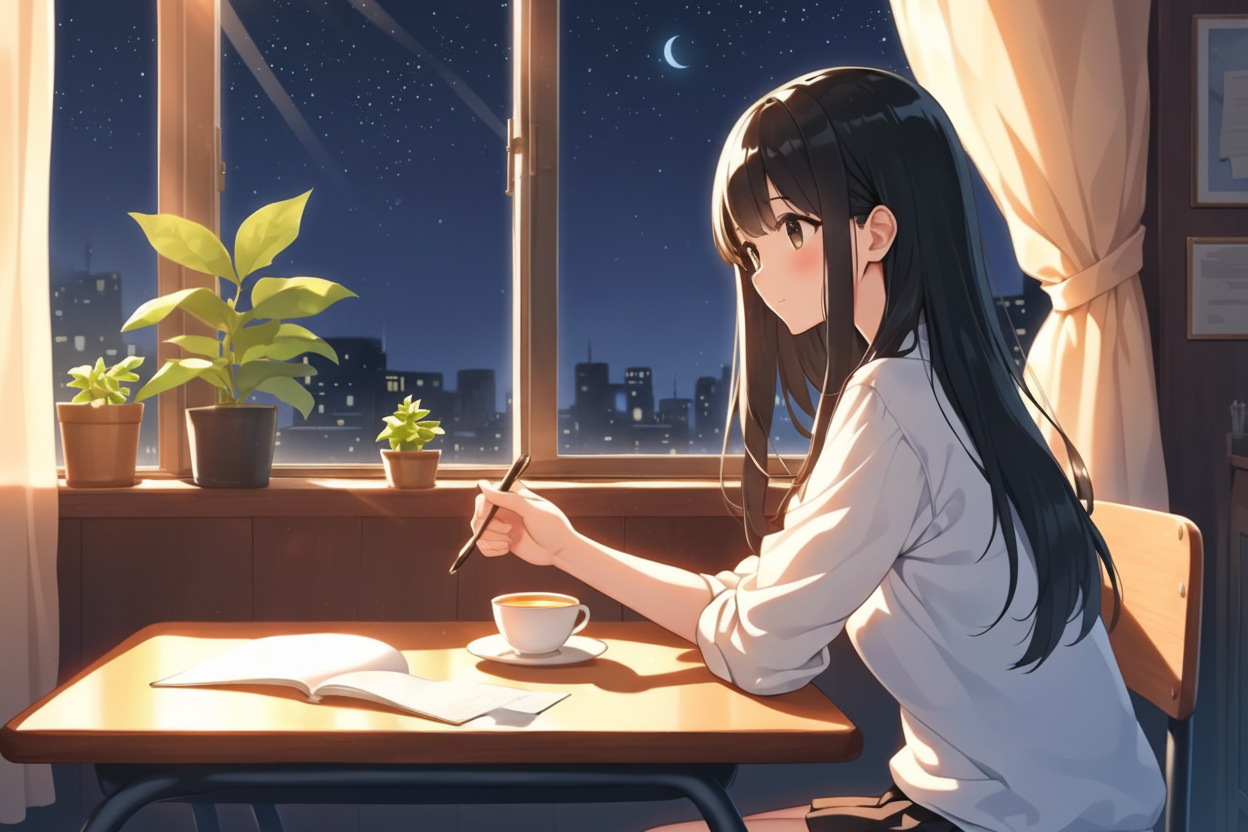
Click “Generate,” and the AI will create a new version in a short time. If you want to adjust color tone or composition further, simply add another instruction and regenerate. You can repeat this until you’re satisfied.
If You Want to Use It a Lot, the Pro Plan Is Recommended
For users who want to fully take advantage of the AI Assistant, the Pro Plan is recommended. The free plan lets you try the basics, but the Pro Plan increases generation capacity and unlocks higher-quality output and more advanced editing options.
That expands creative freedom and speeds up production. It’s a cost-effective choice for anyone who needs to produce many illustrations or plans to create consistently.
Learn more about copainter plans here
Summary
copainter’s AI Assistant is a reliable tool that makes it easy to achieve “I want it more like this” during illustration creation.
From character edits to three-view sheets and expression variations, the AI supports the whole process—greatly reducing production time. It also offers peace of mind with a design where your data isn’t used for AI training, plus official commercial-use support. With the Pro Plan, you can unlock even more capabilities and broaden your creative range.
Why not make your creative work freer—and more fun—with copainter?
Try copainter, the AI illustration creation assistant (Copainter)
![[Free Download] Chibi Character Battle Pose Collection — Free for Copainter Users, Including Commercial Use](/content/images/size/w720/2026/03/header_pose-collection_battle-of-deformation-character-1.png)
![[Free Download] Female Battle Pose Collection — Free for Copainter Users, Including Commercial Use](/content/images/size/w720/2026/03/header_pose-collection_battle-of-woman-1.png)
![[Free Download] Male Battle Pose Collection — Free for Copainter Users, Including Commercial Use](/content/images/size/w720/2026/03/header_pose-collection_battle-of-man-1.png)