
Tips for Creating High-Accuracy, Company-Specific AI Models with copainter’s Training Feature
copainter’s new Training feature lets Enterprise users train custom character or style models. High accuracy depends on consistent, high-quality images, sufficient data, and iterative testing with AI Assistant support.
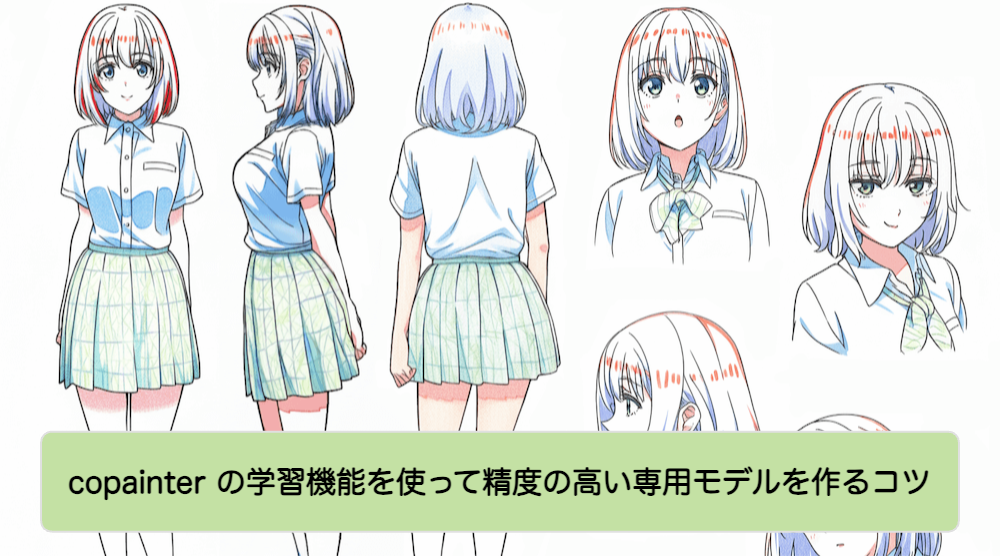
A New “Training” Feature Is Now Available in copainter
copainter has introduced a new Training feature. With this feature, you can train AI on your own characters or art styles to achieve more consistent and accurate outputs.
The key to successful training lies in what kind of data you prepare and how much of it you provide.
In this article, we’ll share practical tips for achieving high-accuracy training—especially what kinds of images to prepare. By the end, anyone can create a higher-quality custom model.
Note: The Training feature is currently available only on the Enterprise plan for businesses. For inquiries about the Enterprise plan, please contact us below.
1. Tips for Choosing Training Images
Prioritize consistency
If you want the AI to learn a specific character or art style, avoid mixing images with different looks.
For character training, use images of the same character wearing the same outfit. Mixing outfits can cause elements to blend together in the output.
If you want multiple outfits, train each outfit separately and create different models.
If you don’t have enough data, you can supplement it using the AI Assistant described later.
One character per image
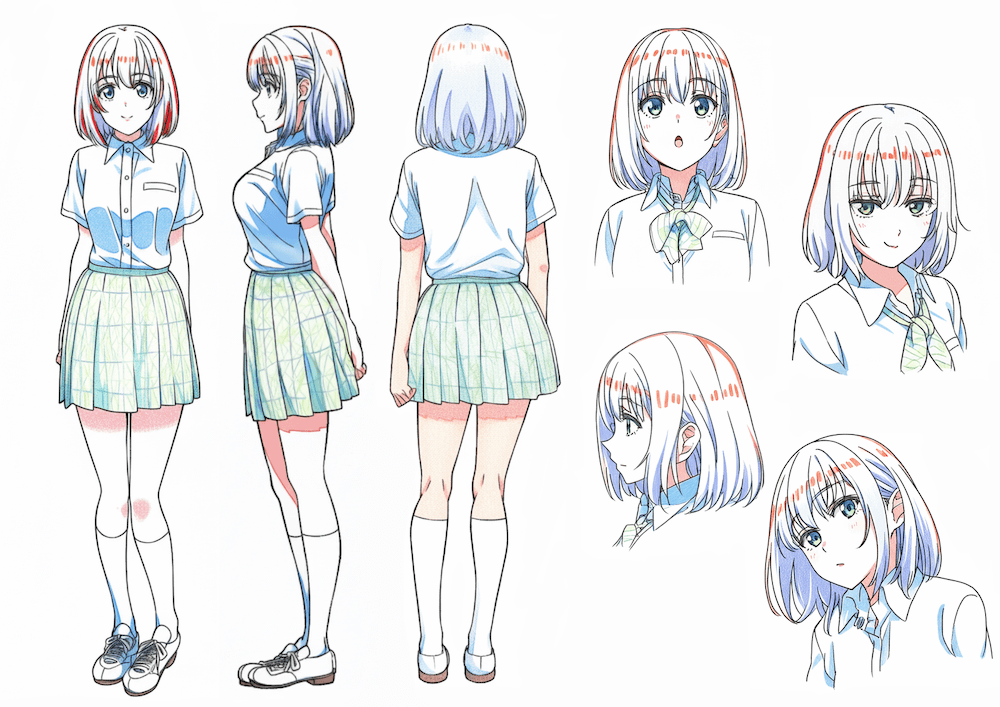
If you have character sheets with multiple faces in a single image, do not upload them as-is. Crop each face into a separate image file before uploading.
Although copainter performs automatic splitting, imperfect cuts may introduce noise.
Use high-resolution images
Images with clear details improve reproduction accuracy. Low-resolution images with crushed details may cause the AI to learn those flaws as “correct.”
We recommend images with a minimum short side of 1000px.
Images smaller than this may result in blurry or less detailed outputs. Higher resolution is fine, but anything above 1000px on the short side is sufficient.
If needed, use copainter’s upscaling AI.
Avoid watermarks, text, and speech bubbles
Watermarks, text, manga speech bubbles, or mixed-style backgrounds can disrupt training. Use clean images with a clear focus on the subject.
The AI Assistant can help clean up data if needed.
Avoid images with cropped faces
Images where faces are cut off may prevent proper learning.
If you lack sufficient images, combine cropped and uncropped images and use the AI Assistant to reconstruct missing parts.
Backgrounds are optional
Having backgrounds does not significantly affect training, so background-inclusive images are acceptable.
2. Balancing the Amount of Data
Minimum: 10 images
Training is possible with 10 images, but 20 or more provides better stability.
Character training: 10–20 images
While as few as 5 consistent images can work, 10–20 images is recommended for stable results.
Style training: 20–50 images
The Training feature is designed with 20–50 images in mind.
More images are not always better—quality and consistency matter more than quantity. Adding low-quality images can reduce accuracy.
For highly distinctive styles, 50 images may not be enough. In such cases, increasing to 100 images can improve results.
Recommended: Use the AI Assistant to expand your dataset
If you lack data, use copainter’s AI Assistant to generate characters in various poses and compositions to strengthen your dataset.
Using pose references in addition to text prompts is especially effective.
For images with speech bubbles, instruct the AI Assistant to “remove the speech bubbles” to clean them up.
3. Testing and Refinement After Training
Start with simple generation
After training, run test generations.
Trained models can be used with Line Art AI, Coloring AI, and Image Transformation AI, but results may vary by feature.
Coloring AI is particularly challenging, so we recommend accepting reasonable quality and refining manually if needed.
Review outputs and troubleshoot
If expressions or poses feel weak, add images that strengthen those aspects and retrain.
Currently, copainter does not support adding data to an existing model for retraining.
We recommend keeping your own records of which images were used for each model.
Iteration is expected
The Training feature is designed so anyone can create a solid model, but perfect results rarely come in one pass. Repeated training with improved data leads to better outcomes.
4. Advanced Usage Tips
Expression variations
Training expressions (smiling, angry, crying, etc.) enables smooth generation of expression variations.
You can also create expressions directly with the AI Assistant.
Outfit variations
Train separate models for each outfit to create high-accuracy clothing variations.
Multi-angle and turnaround learning
Training front, side, and back views helps with multi-angle generation.
The AI Assistant can also be used to generate turnaround sheets.
5. Pro Tip: Text-to-Image with Custom Models
You can generate images using your custom model with text-to-image (called Image Generation AI in copainter).
To do this, use Image Transformation AI, set Fidelity to 0, and generate using text prompts only—without referencing an input image.
Summary
The accuracy of the Training feature depends heavily on preparation and strategy.
- Carefully select your images
- Use 20+ images, up to around 200 when needed
- Reinforce datasets with the AI Assistant
- Test and iterate repeatedly
By following these steps, creating with copainter becomes more flexible and enjoyable.
If you’re considering the Enterprise plan, feel free to reach out with any questions.
![[Free Download] Chibi Character Battle Pose Collection — Free for Copainter Users, Including Commercial Use](/content/images/size/w720/2026/03/header_pose-collection_battle-of-deformation-character-1.png)
![[Free Download] Female Battle Pose Collection — Free for Copainter Users, Including Commercial Use](/content/images/size/w720/2026/03/header_pose-collection_battle-of-woman-1.png)
![[Free Download] Male Battle Pose Collection — Free for Copainter Users, Including Commercial Use](/content/images/size/w720/2026/03/header_pose-collection_battle-of-man-1.png)