
copainter Coloring Feature Introduction
copainter Coloring V2 turns line art and flats into natural, high-res coloring.
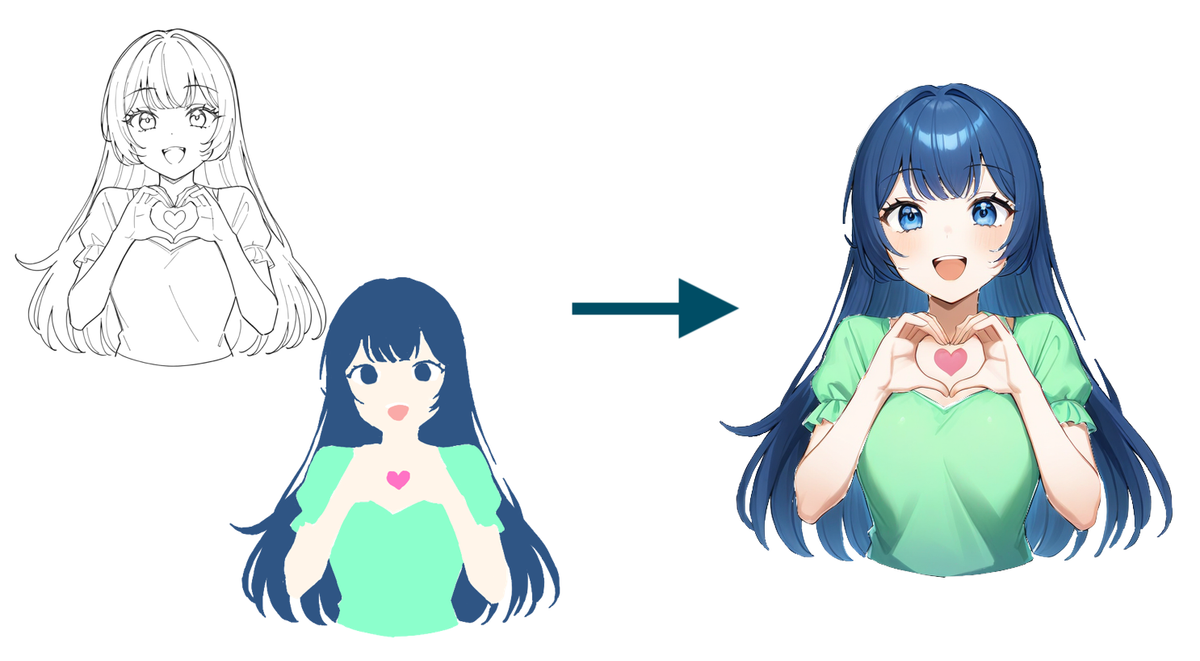
You tried coloring your illustration, but it didn’t turn out the way you imagined.
Have you ever found yourself wondering, “What looks wrong?” or “How should I fix it?”
If so, copainter’s Coloring feature might help!
copainter offers a Coloring feature that generates full coloring from your line art and base colors (flat colors). While respecting the lines you drew and the colors you laid down, our AI completes the coloring for you.
We’ve released Coloring V2!
In addition to a more natural finish, it features a paint style with a higher-resolution feel. Compared to V1, it also produces fewer artifacts and breakdowns in the coloring.
With this new model release, we’d like to introduce the Coloring feature in this article.
https://x.com/copainter_info/status/1942804138363957341
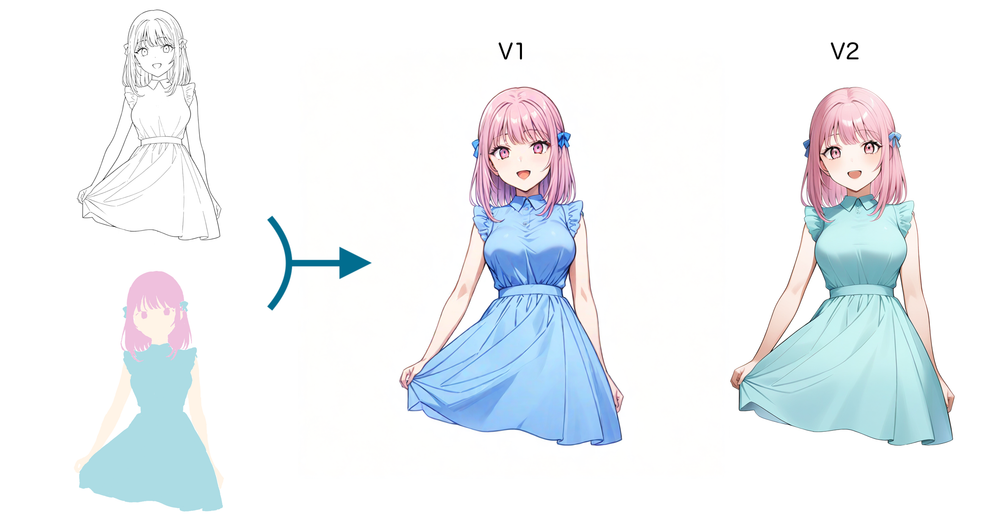
(Comparison images: V1 vs V2)
Main ways to use the Coloring feature
There are two main ways to use it:
- Use the output as the final coloring
- Use the output as a coloring reference
By simply uploading your line art and base-color image, you can quickly check what the finished illustration could look like.
How to use the Coloring feature
(Coloring screen)
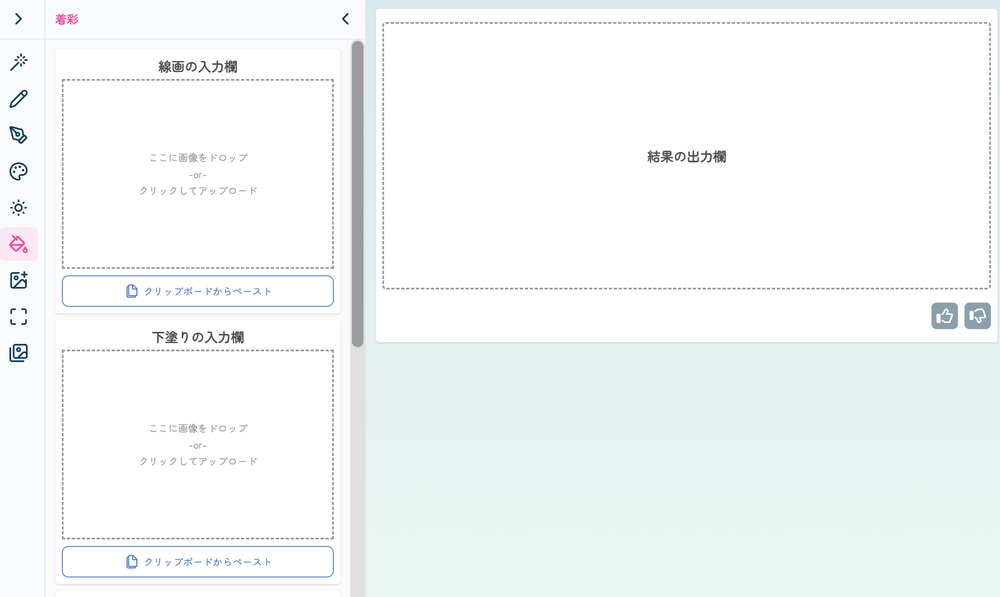
1) Upload the line art
Upload a monochrome line-art image.
For solid black areas (“fills”), we recommend putting them in the base-color image instead.
2) Upload the base colors
You don’t need to draw shadows or highlights.
If your flats are filled cleanly and evenly, the final coloring is more likely to come out clean as well.
3) Click the Submit button
The Submit button is located below the input fields and parameters.
PSD conversion can be done without consuming tickets.
About the settings
By adjusting each parameter, you can change the overall look and feel of the output. Let’s take a look at each option.
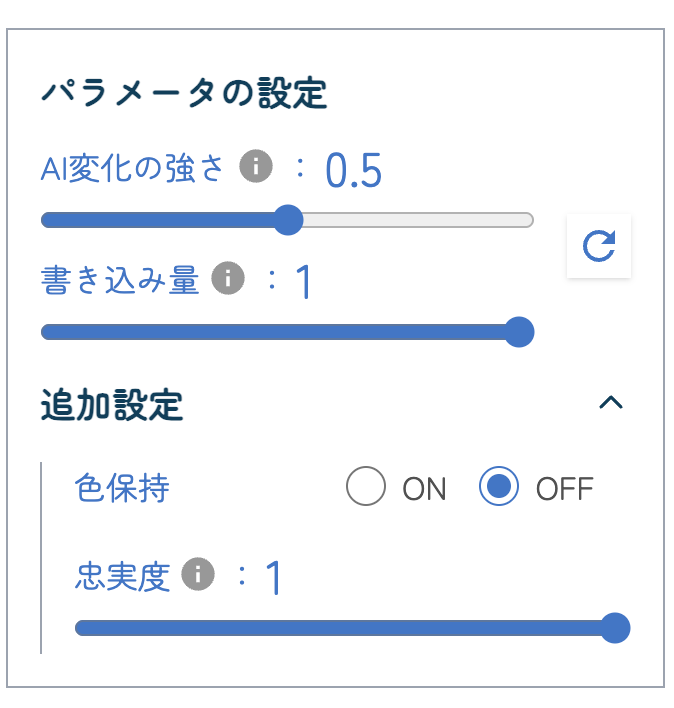
AI Variation Strength
Recommended: 0.8–1.0
A higher value makes the coloring stronger, but it can also cause colors and details to change more easily.
If the change feels too small, increase it; if it feels too strong, lower it.
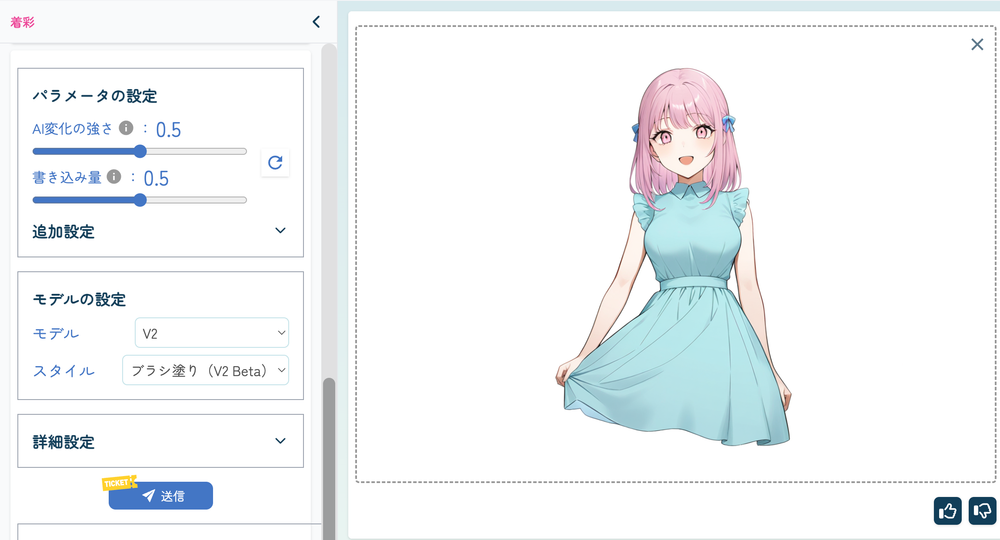
(AI Variation Strength: 0.5)
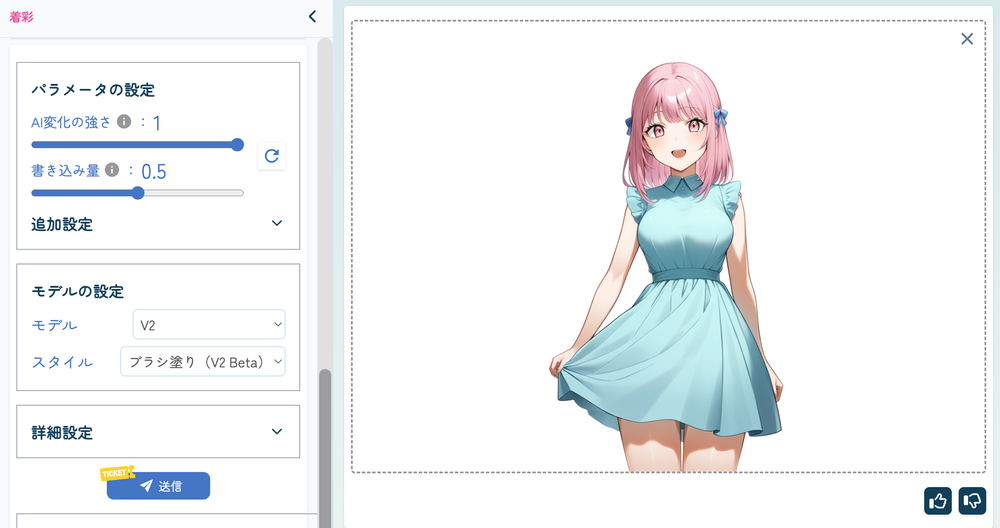
(AI Variation Strength: 1)
Note: The optimal parameters differ from V1. The default for V1 is 0.5.
Detail Amount
Recommended: 0.5–0.7
Adjusts the amount of shadows and wrinkles/details.
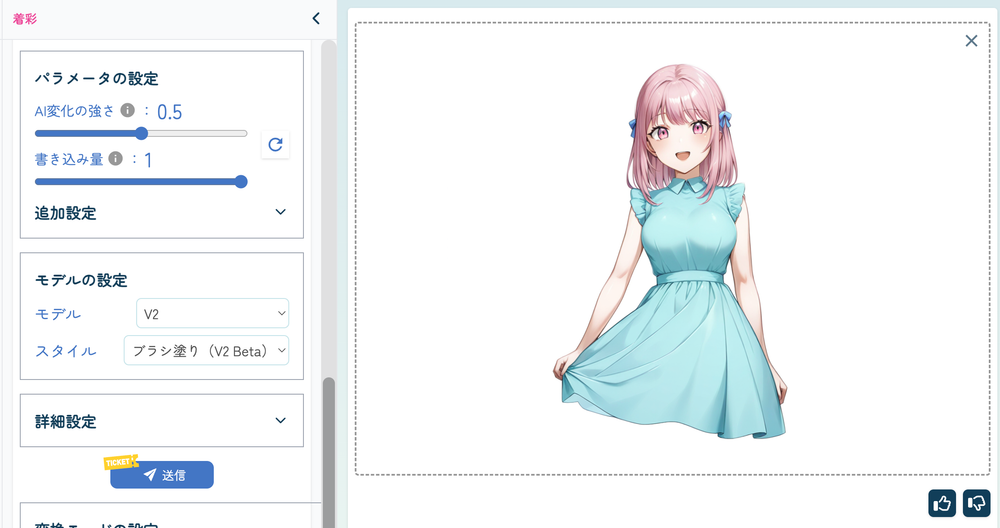
(Detail Amount: 1)
Preserve Colors
If your colors shift too much, try turning this ON.
Fidelity
Recommended: 0.8–1.0
Controls how faithfully the output follows your input line art and colors.
Lower values make it behave more like img2img.
At the moment, Coloring V2 is available only in a brush-paint style. We plan to add more painting styles in the future.
We hope you’ll make use of the Coloring feature and discover new possibilities for your own creative workflow.
![[Free Download] Chibi Character Battle Pose Collection — Free for Copainter Users, Including Commercial Use](/content/images/size/w720/2026/03/header_pose-collection_battle-of-deformation-character-1.png)
![[Free Download] Female Battle Pose Collection — Free for Copainter Users, Including Commercial Use](/content/images/size/w720/2026/03/header_pose-collection_battle-of-woman-1.png)
![[Free Download] Male Battle Pose Collection — Free for Copainter Users, Including Commercial Use](/content/images/size/w720/2026/03/header_pose-collection_battle-of-man-1.png)