How to Use AI for Creative Work? An Introduction to img2img
Introduction to Image-to-Image in copainter
Hello, we’re the copainter content team.
We offer a service called “copainter” that helps you make use of AI in creative work.
https://www.copainter.ai/
In this series, we’ll share how to use copainter more effectively, and more broadly, how to incorporate AI into creative projects in the first place. We hope these tips and ways of thinking will be helpful when you use AI for creation. If you’re interested, please take a look.
Today’s theme is “img2img,” a common entry point for using AI in creative work.
When do you want to use AI in the first place?
When do you want AI’s help in your work or hobbies?
You might want it to draw for you, provide reference materials, draw only the background… there are many possible cases.
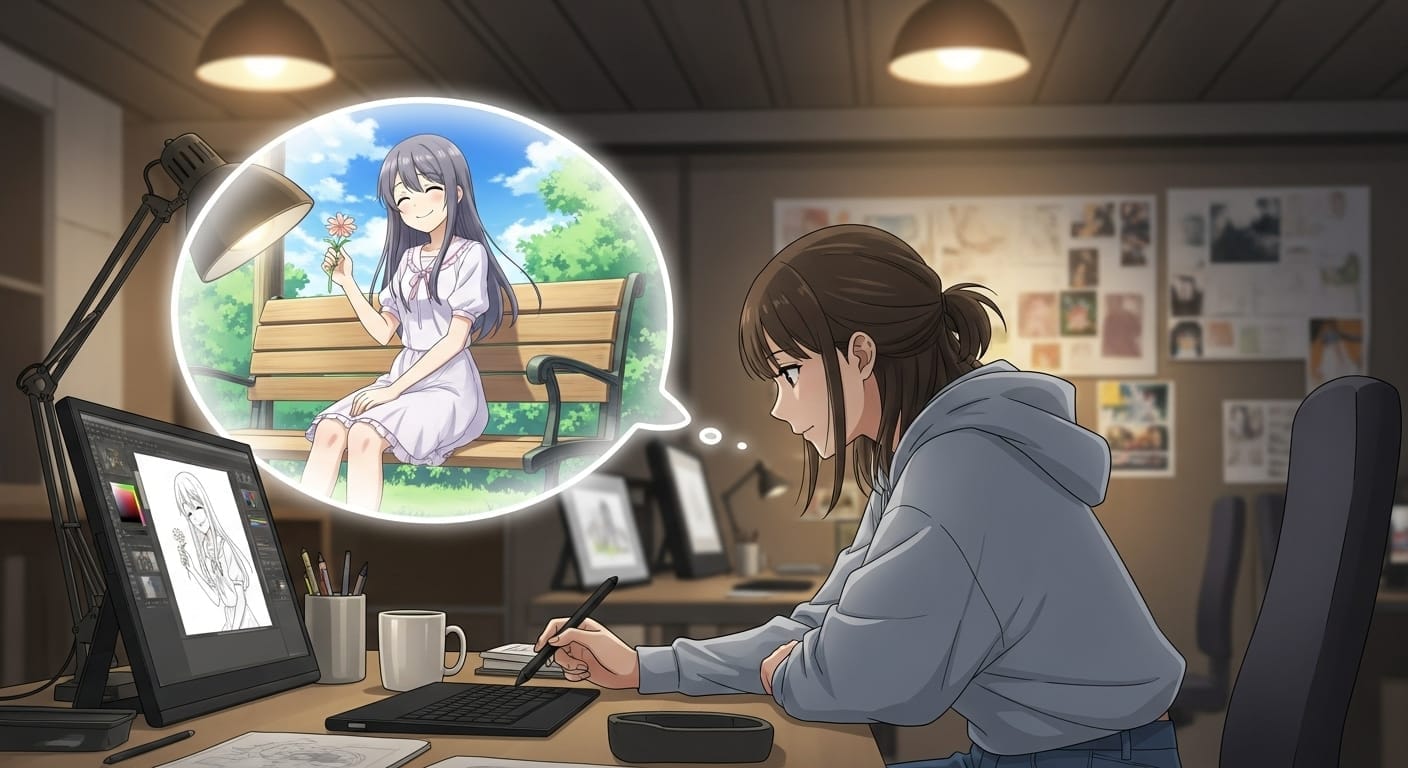
What these situations often have in common is that you already have an image in mind of what you want. For example: “I want you to draw a girl,” “I want a sitting pose,” or “I want a park background.” When you draw, you usually have a picture you want to create, right…?
That’s where img2img comes in—it’s what you use to convey that image to AI.
When people think of image-generation AI today, they often imagine typing text to generate an image—this method is called txt2img. We’ll introduce ways to use txt2img another time.
So, what kind of generation method is img2img?
What is img2img?
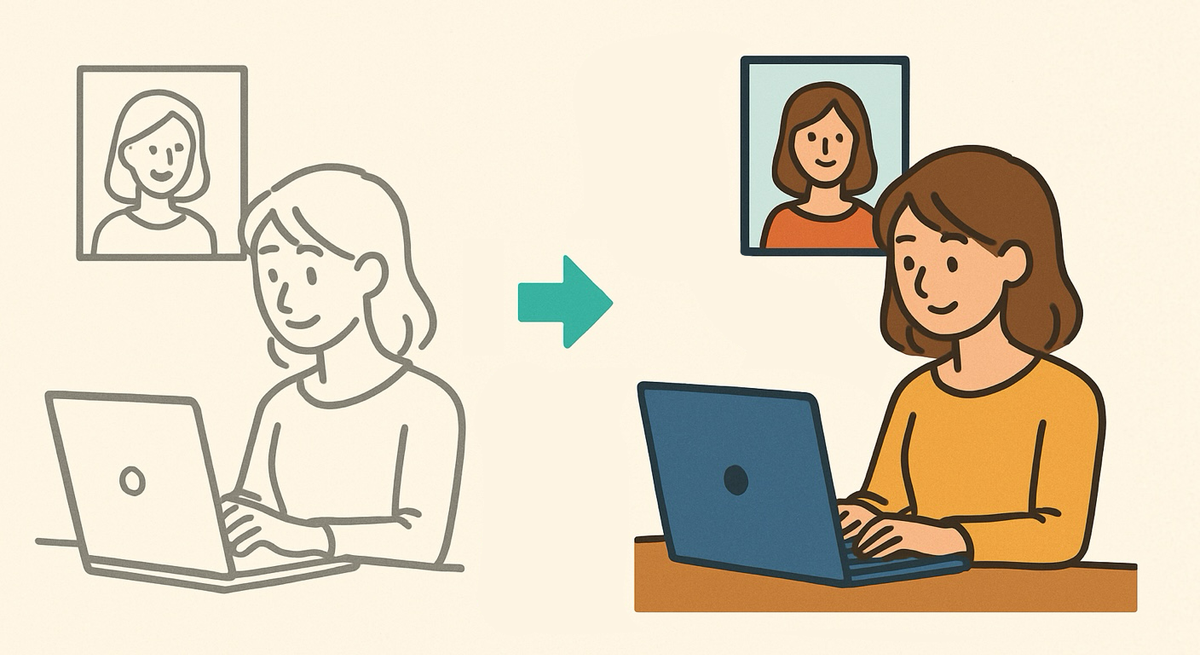
With img2img, you input an image and generate a new image using it as a reference. Because you provide not only text but also an image, you can show AI the kind of result you want in visual form.
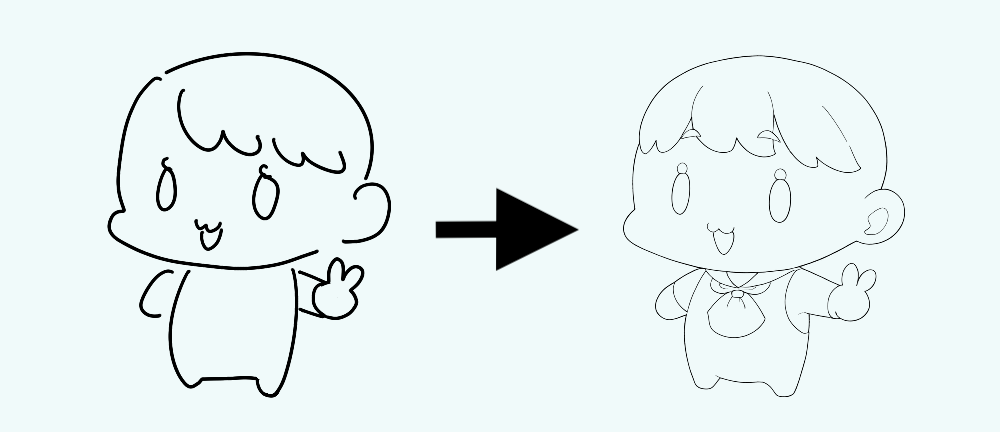
In other words, you’re asking AI to understand your intent—communicating information about the image you want using both text and an image. This lets you convey nuances and composition information that can be hard to express with text alone.
(img2img is short for “image to image.” You may also see it written as “i2i.”)
What to think about when using img2img
There are several important points when generating images with img2img. One of them is: “How closely should the output follow the input image?”
In copainter, you can adjust this using a parameter called “Fidelity.”
As an example, let’s use copainter’s line-art model.
Example 1
First, input a rough sketch with the default setting (Fidelity 0.6).
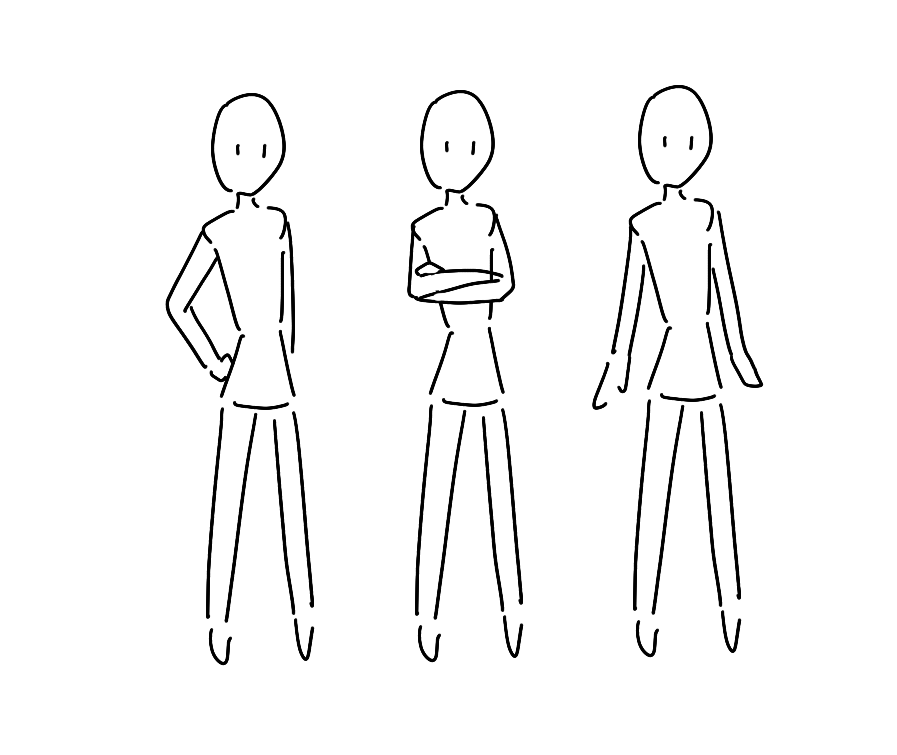
↓ When you convert it…
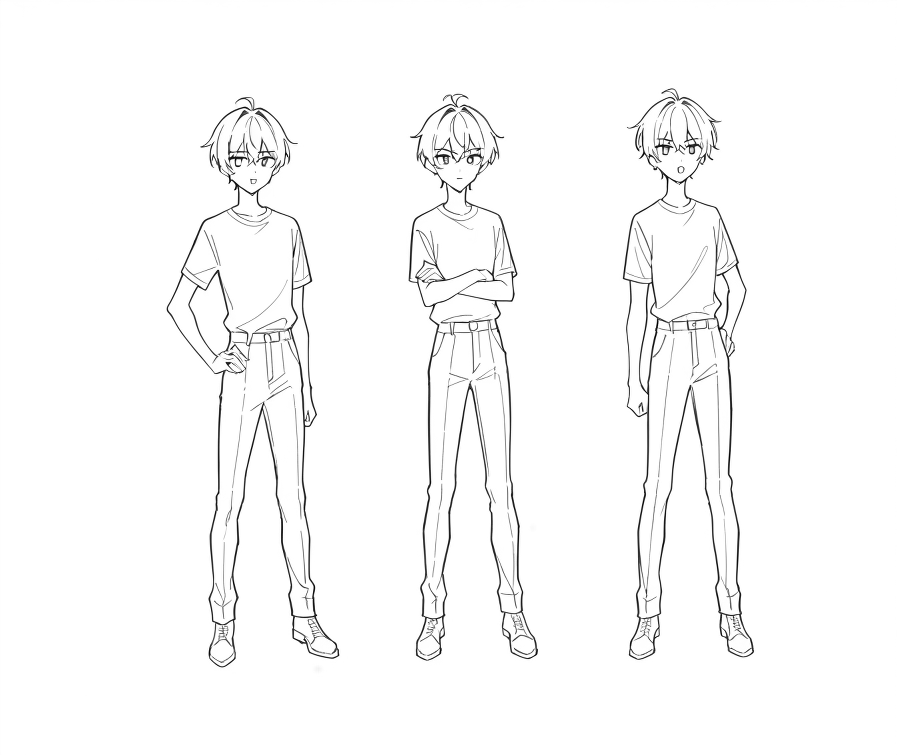
You’ll get an output image that seems useful as a pose reference.
Now, what happens if we keep the same rough sketch and change only the Fidelity?
If you increase Fidelity (Fidelity 1)
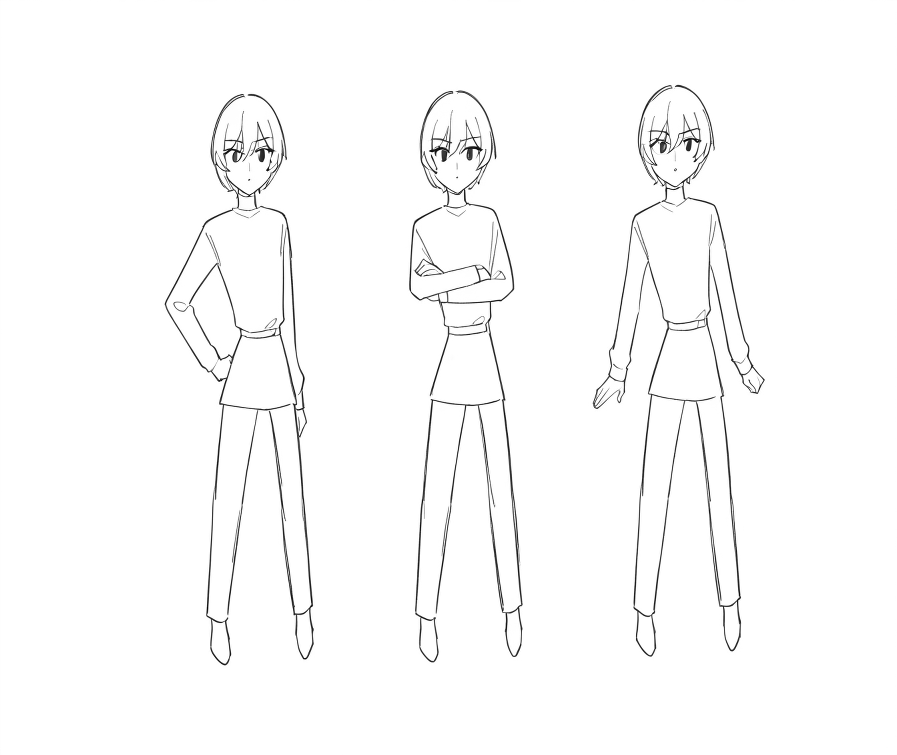
The output becomes very close to the input rough sketch.
The body build and the legs, for example, remain almost the same.
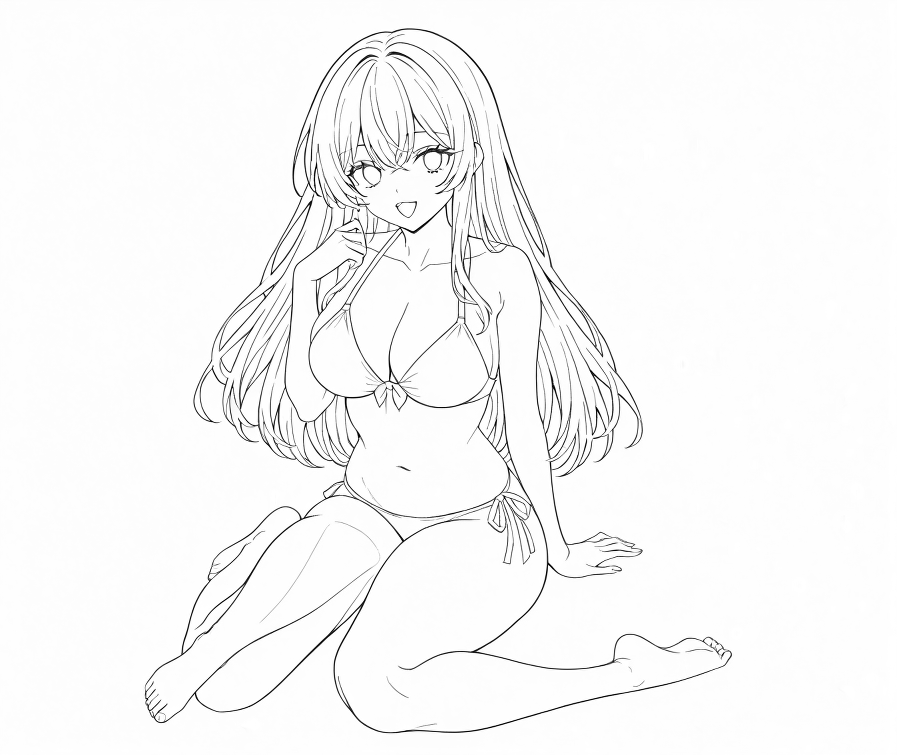
If you lower Fidelity too much (Fidelity 0)
The original form can disappear.
As a general recommendation, Fidelity around 0.6–0.8 works well. Try adjusting the value depending on how much you want the input image to be reflected.
Example 2
Next, let’s look at how the amount of information in the input image changes the results.
Rough sketch
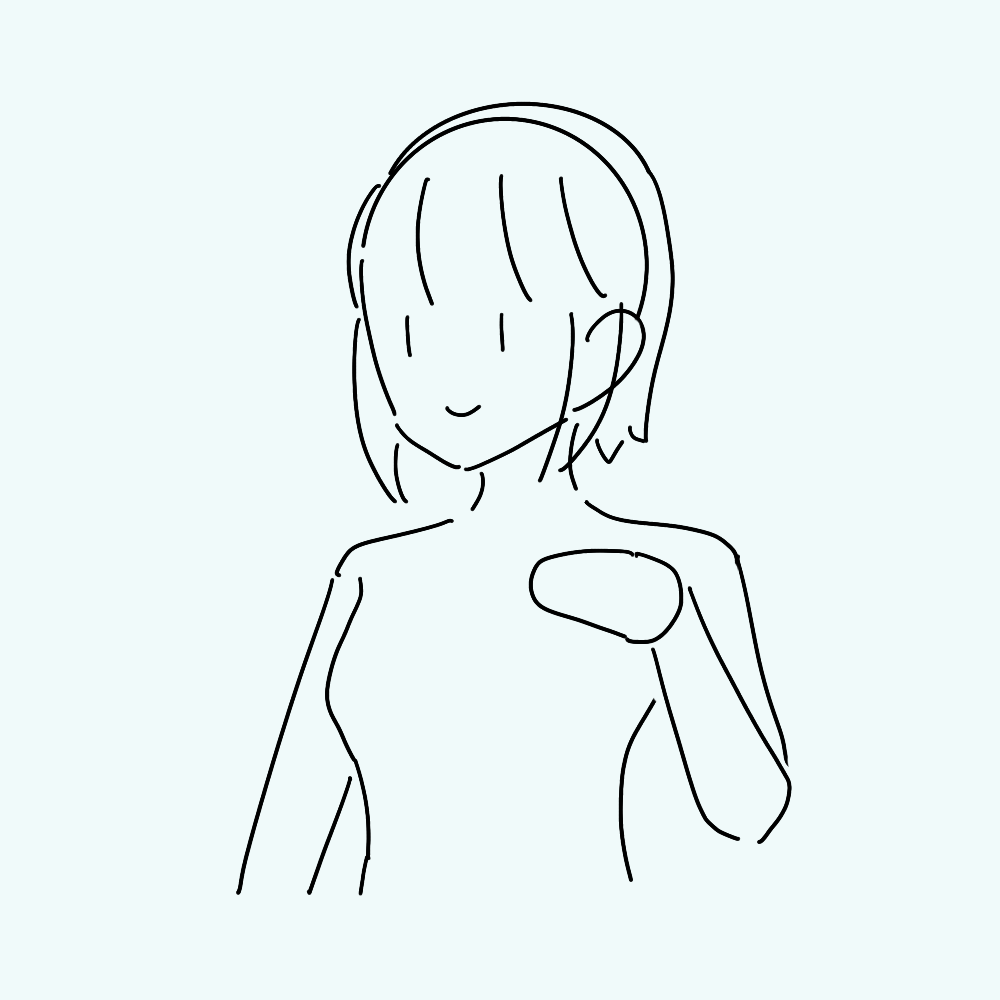
↓
Fidelity: 0.6
Prompt: solo, breasts, smile, short hair, simple background, white background, closed mouth, upper body, hand up, sketch o, split mouth, clothes,
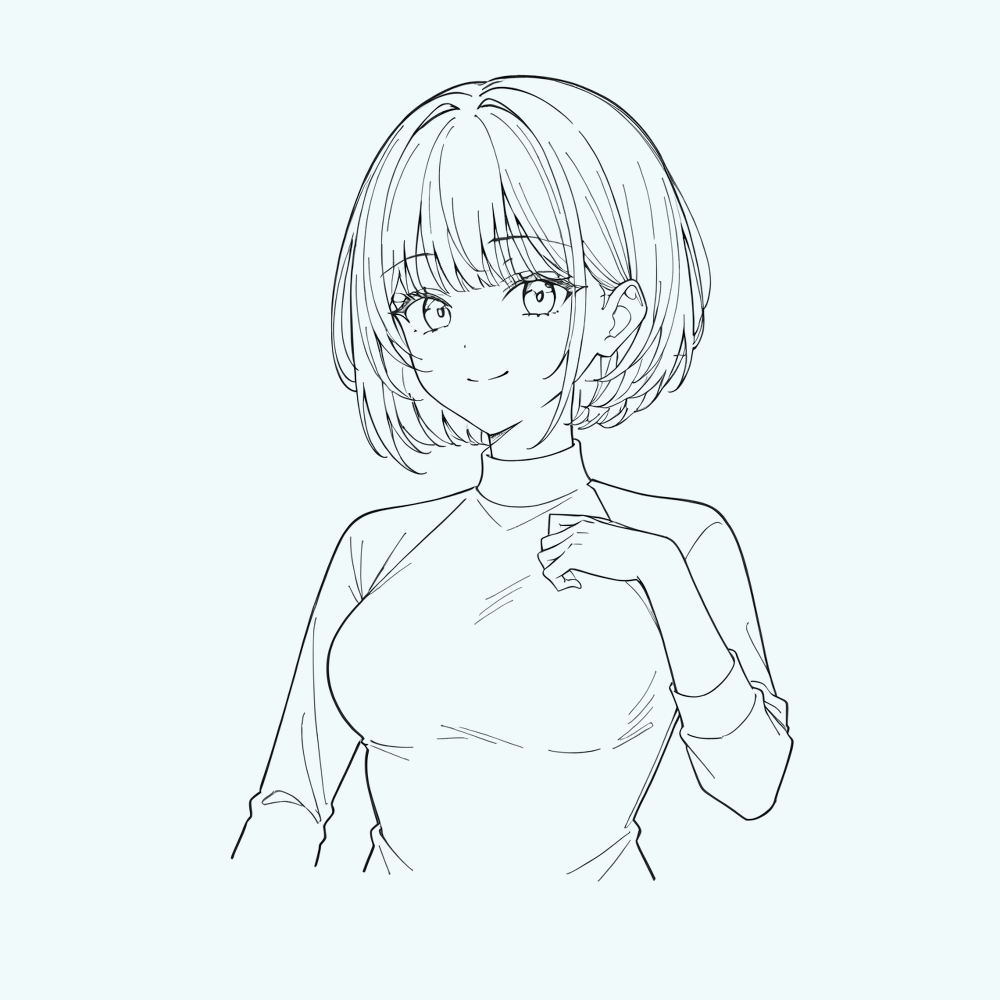
↓
As in Example 1, the change from the input image is large. It can work as a reference image, but if you need to revise it to match your style, it might take a bit of time.
A slightly refined rough sketch
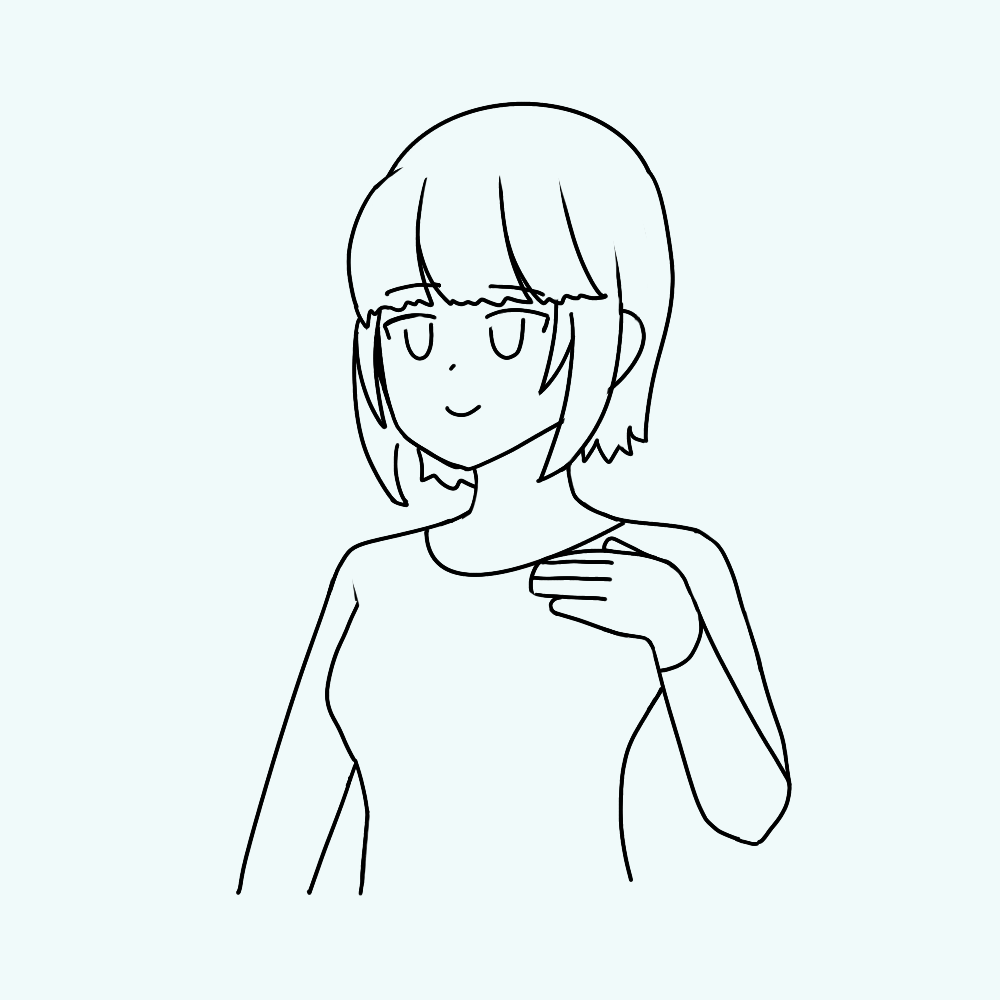
↓
Fidelity: 1
Prompt: solo, breasts, smile, short hair, simple background, shirt, white background, closed mouth, upper body, hand up
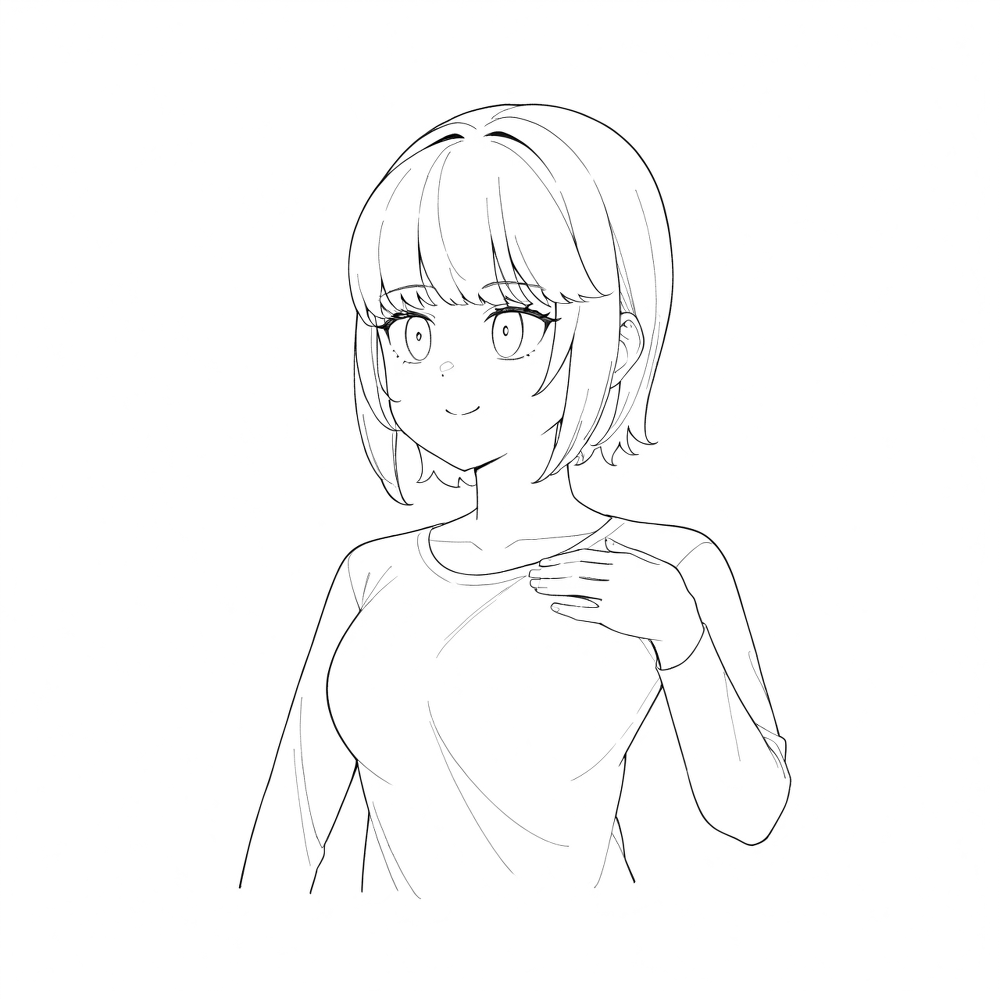
This result is closer to the input image than before. Because the nuances around the face can change easily, you may need to retouch it. In this case, changing the prompt doesn’t have much effect. If you want it to follow the input even more closely, try adjusting Fidelity.
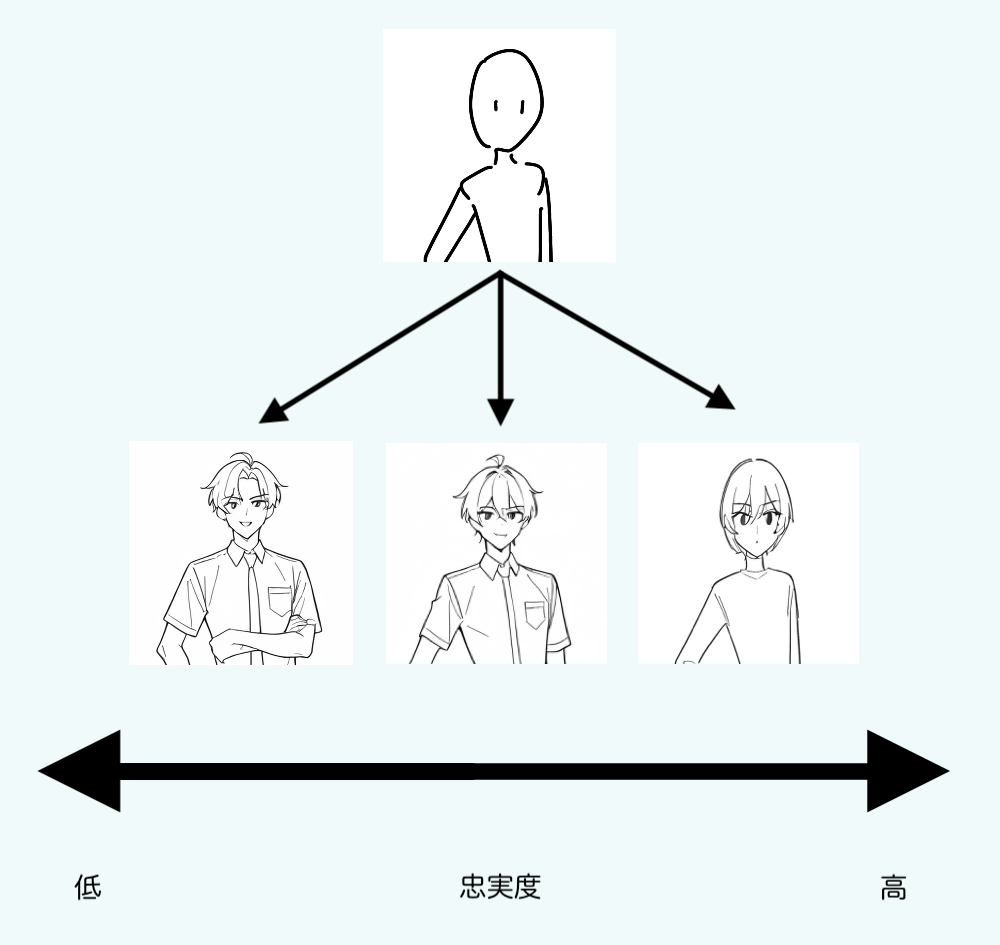
The generated image will change depending on the balance between the input image, Fidelity, and the prompt. The ideal output will also vary greatly depending on your goal (e.g., “I want a pose reference” vs. “I want to clean up line art”). You’ll need to explore the right balance based on the kind of image you want.
Try finding the balance that fits your workflow.
Things to watch out for when using img2img
img2img is a very convenient feature, but there are also important cautions. The most important is the rights to the image you input.
For example, avoid using other people’s illustrations, photos, or commercial assets as input images without permission. img2img generates a new image based on the input image, but because it is a method that can depend strongly on the original image, if the original has copyright, there is a risk of copyright infringement.
Major copyright infringement risks include:
- Dependence (derivative reliance): If you create a work while referencing someone else’s, it may be judged as infringement depending on how strongly it relies on that original work.
- Similarity: If the generated image is notably similar to the original work, it may also be considered infringement.
Therefore, when using img2img, use images for which you hold the rights, such as:
- Rough sketches or line art you drew yourself
- Photos you took yourself
- Materials you have permission to use, etc.
To enjoy using AI for creative work safely and with peace of mind, please be careful about how you handle images.
This time, we introduced the basics of img2img, key points for effective use, and important precautions. img2img is a powerful feature for “communicating your own image to AI effectively.” You can use it in many situations—expanding ideas from a rough sketch or composition, or using it as a base for a clean final drawing.
On the other hand, using it incorrectly can lead to issues such as copyright troubles. Please handle input images carefully and enjoy safe, secure creative work.
At copainter, we offer a wide variety of tools to support your creative process, including features specialized for img2img, Fidelity adjustments, and line-art models. If you want to “clean up from a rough sketch” or “have AI come up with composition ideas,” copainter provides useful tools for illustration creation—please give it a try. Your first 10 generations are free!
https://www.copainter.ai/
We’ll continue sharing ways to use copainter and tips that help with creative work—stay tuned!
![[Free Download] Chibi Character Battle Pose Collection — Free for Copainter Users, Including Commercial Use](/content/images/size/w720/2026/03/header_pose-collection_battle-of-deformation-character-1.png)
![[Free Download] Female Battle Pose Collection — Free for Copainter Users, Including Commercial Use](/content/images/size/w720/2026/03/header_pose-collection_battle-of-woman-1.png)
![[Free Download] Male Battle Pose Collection — Free for Copainter Users, Including Commercial Use](/content/images/size/w720/2026/03/header_pose-collection_battle-of-man-1.png)